Reporting Services can be a useful tool to surface details for end users but sometimes you get a request to tag on some other data which isn’t contained within the same database or even environment. You could use cross database queries or linked servers respectively to get this data but it ends up building in dependencies that might be overlooked when you’re looking at migrating or decommissioning systems down the line.
A way to avoid this can be to use multiple datasets coupled with Report Builder’s Lookup function to be able to reference them within the same tablix. In the example below I’ve mocked up a sales report and the request is that we compare the sales against stock figures. The challenge is that our point of sales and warehouse systems are in separate environments.

You’ll see that we’ve already added a new data set for our stock details which is linked to a separate data source (shared data source preferably too). Critically this data set must have a field in common with the main data set – in this case the ProductId and StockId fields use the same identifiers. The contents of these data sets is shown below for reference.
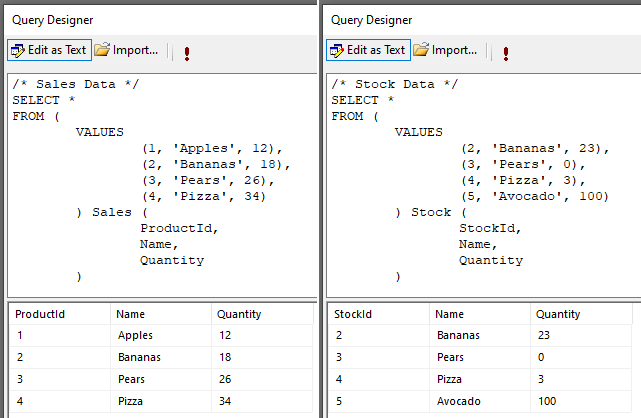
I’d expect you’ll be using more realistic data than what I’m doing here, but thought it was worth noting for later that we don’t have Apples in stock, and nobody is buying Avocados. With all of that in place we’re able to add a new field into the tablix and add an expression to present the stock quantity:
=Lookup(Fields!ProductId.Value, Fields!StockId.Value, Fields!Quantity.Value, "Stock")
The tablix is set to use the Sales dataset so the first parameter specifies the value to use from this dataset for the lookup – the ProductId. The second parameter should be from the new dataset and specify the field to look up against – in this case the StockId since we know it matches the ProductId. The third parameter is the one which we actually want to be presented so here we use the Quantity field to see what stock is in the warehouse. The final parameter is the name of the data set where the second and third parameters originate from – so our new Stock dataset – and is notably a quoted string rather than a variable within the report model.
What’s great with the lookups is that they’re scoped in the same way as the usual elements in the tablix so in the same way that we can wrap a Sum() function around the Quantity value we can do the same around the Lookup function to allow totalling across the report. Below is the finalised report with our changes made:

So when we now run the report you’ll see the relevant stock values and the total of these in the results. Sure enough, the result of our handy work…
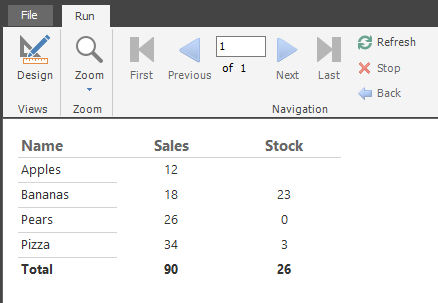
As noted earlier, the Apples we don’t have in stock are returning a blank field rather than needing any fancy error handling to be in place. Also you see the stock of Avocado isn’t skewing the totals for the other products listed in the report as its the total of the values which matched the lookup.
Hurrah, a report using linked data sets and we’ve got no hidden dependencies!
This approach is particularly useful when referencing smaller sets of data, for example a single stock value like we did above, or a category for a product, postal code for a location, etc. Trying to do this with a couple of fact tables where there are a large volume of records on both sides of the join isn’t a great idea and may be best to look for a solution within the data layer such as copying portions/aggregations of the data between the environments with a separate tool such as SSIS so we can let the database engine crunch that sort of workload.
 Andy Brownsword