Last time out we looked at how to add parameters in a Reporting Services report. In there we looked at adding a parameter where only a single value was selected by the user. We also have the option to allow selection of multiple values for parameters, for example the selection of multiple sales regions or product categories.
In this post we’ll use the report we built last time and look at how we can modify it to add the functionality to select multiple parameters and what impact that has on how we need to build the report and query the data.
Allowing multiple values
Recapping what we produced last time, we ended up with a report where we can select the sales month and we’ll be provided with a list of products sold in the month and the total value of sales for them. Right now we can only select a single month to report on so we couldn’t run a quarterly report for example.
The first thing we need to do to allow a range of months to be selected from the dropdown is to change the parameter to allow multiple values. If we pop open the properties for the parameter we can enable that:

If we now go back into the report and look at the parameter available we’ll still have the default option set like we did previously but now we’ll have check-boxes next to each period and we can select multiple:
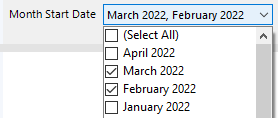
This is a great start, however when we go to try and run our report now we’ll have an error thrown up when it tries to render. The issue is that we’ve set up our procedure to accept a single parameter but now we want to pass multiple into it so we need to also change how we retrieve the data.
Solving with a view
In our example we’re running a stored procedure which calls a single SELECT statement to retrieve the data. Due to this its possible for us to look at converting this into a view and when we query the view we’d then apply a filter with the multiple values. As a reminder this was the query we used before:
SELECT
	p.Name,
	p.ProductNumber,
	SUM(d.LineTotal) LineTotal
FROM
	Sales.SalesOrderHeader h
	INNER JOIN Sales.SalesOrderDetail d
		ON h.SalesOrderID = d.SalesOrderID
	INNER JOIN Production.Product p
		ON d.ProductID = p.ProductID
WHERE
	h.OrderDate >= @MonthStartDate
	AND h.OrderDate < DATEADD(
        MONTH, 1, @MonthStartDate)
GROUP BY
	p.Name,
	p.ProductNumber;
Now we can’t use this directly for two reasons – firstly we’re passing multiple parameters and the existing check against the OrderDate is for a single continuous range so it won’t work if the months aren’t next to each other, and then secondly if we put this into a view and want to filter it we don’t have any dates in the result set. Based on these challenges I’ve built the view to be as follows:
CREATE VIEW dbo.vMonthlyProductSales AS

SELECT
	DATEADD(DAY,
		-(DATEPART(DAY, h.OrderDate)-1),
		h.OrderDate) [StartOfMonth],
	p.Name,
	p.ProductNumber,
	SUM(d.LineTotal) LineTotal
FROM
	Sales.SalesOrderHeader h
	INNER JOIN Sales.SalesOrderDetail d
		ON h.SalesOrderID = d.SalesOrderID
	INNER JOIN Production.Product p
		ON d.ProductID = p.ProductID
GROUP BY
	p.Name,
	p.ProductNumber,
	DATEADD(DAY,
		-(DATEPART(DAY, h.OrderDate)-1),
		h.OrderDate);
The date calculation here will return the start of the month for the OrderDate, so for example any order in March would always return 1st March. With this view in place we can now query the view and filter for the month we like to resolve the first point above, and with the inclusion of the first day of the month this then solves the second point so we should be good to go.
Using this will necessitate changing our MonthlySales dataset to interrogate the view rather than the stored procedure. To do this we’ll change the query type to be Text and in the query we’ll add the below:
SELECT Name, ProductNumber, SUM(LineTotal) [LineTotal]
FROM dbo.vMonthlyProductSales
WHERE StartOfMonth IN (@MonthStartDate)
GROUP BY Name, ProductNumber
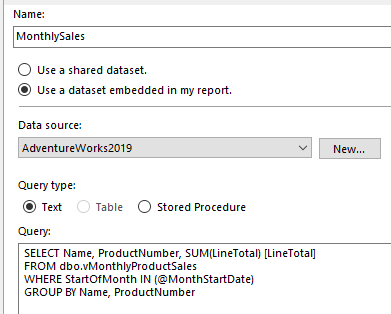
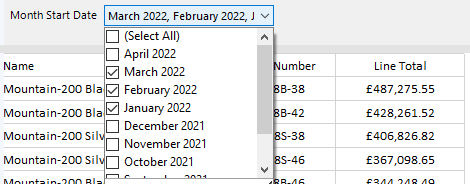
Since we’ve got our underlying view only aggregating to a monthly level we want to apply a further level of aggregation into the report to total all of the selected periods. We’ve also kept the field names the same in the results so we won’t need to make any other changes for the report. With that in place we can try to run our report again with multiple parameters and we’re looking good:
I’m going to caveat this approach with a couple of extra thoughts:
- Firstly you should bear in mind that we’ve got a view where we’re filtering on a column which has a function applied and this wouldn’t be performant over a large dataset, you might want to consider something like an indexed computed column for the
StartOfMonthfield - Secondly when we use this approach of query text with multi-value parameters, the parameters are rendered into the query text rather than being parameterised so the query will be compiled by the engine every execution and a new plan created and stored. If you’re going to get lots of wildly different sets of parameters with this report you might want to take consideration of that overhead
Solving with a procedure
Initially we moved away from our procedure since it only accepted a single DATE argument when retrieving the data. One way that we can work around this limitation is by providing a concatenated list of values into the procedure using a single VARCHAR parameter. When we have this we’ll then use the table-value function STRING_SPLIT to split the single parameter into multiple entries. In this example we’ll store those in a temp table to join into our original query.
Below is a new procedure which we can use to select multiple months based on a single parameter:
CREATE PROCEDURE [dbo].[GetSalesForMonths](
    @StartDates VARCHAR(MAX))
AS
BEGIN

	CREATE TABLE #StartDates (
		StartDate DATE,
		EndDate DATE
	);

	INSERT INTO #StartDates (
		StartDate,
		EndDate
	)
	SELECT
		CAST([value] AS DATE),
		DATEADD(MONTH, 1, CAST([value] AS DATE))
	FROM
		STRING_SPLIT(@StartDates, ',');

	SELECT
		p.Name,
		p.ProductNumber,
		SUM(d.LineTotal) LineTotal
	FROM
		Sales.SalesOrderHeader h
		INNER JOIN #StartDates sd
			ON h.OrderDate >= sd.StartDate
			AND h.OrderDate < sd.EndDate
		INNER JOIN Sales.SalesOrderDetail d
			ON h.SalesOrderID = d.SalesOrderID
		INNER JOIN Production.Product p
		ON d.ProductID = p.ProductID
	GROUP BY
		p.Name,
		p.ProductNumber;

END
To test this code we can run it for multiple months with the following as an example for sales in February and March:
EXEC dbo.GetSalesForMonths
	@StartDates = '2022-02-01,2021-03-01';
Now we’ve got that in place we need to make a subtle change to our report to pass our multiple parameters in. Just to note here that I’ve created a new stored procedure so the name has changed and will need to be updated in the Dataset properties.
Whilst in the Dataset properties this time we want to go into the Parameters tab and we’ll see our @StartDates parameter. Rather than selecting our report parameters to be used for the value we want to use an expression to join all of the values together. If we choose the expression option (the button with the text like the letters ‘fx’) we’ll have a dialog pop up where we can enter an expression to create the parameter. This is where the magic happens to combine our multiple values together using the following expression:
=Join(Parameters!MonthStartDate.Value, ",")
With the changes all made we’re ready to go again so we can run the report to see it working with the multi-value parameter in place. Lovely!
Similar to the caveats using the approach of a view to solve this there are another couple of points worth noting with the stored procedure approach:
- The procedure will get compiled based on the first set of parameters seen so if you have some wide variations being used you may see some issues with parameter sniffing so you could monitor executions and ongoing performance to see if this needs to be worked through
- As we’re using a temp table to store the dates its possible that you could get some recompiles to help with the parameter sniffing but you won’t have control of this (assuming we don’t specify
OPTION (RECOMPILE)) so performance may be even more erratic and again monitoring may be beneficial
I wanted to add a word of caution which applies particularly with our example in that we’re using the Join function in SSRS with date parameters. If we’re using text or numeric values this is typically more straight forward but with dates you will find that they’re converted to a string using the locale on your environment. If your machine, Reporting Services instance and SQL Server are all configured consistently then this shouldn’t be an issue. However if any of them are out of sync you might find some discrepancies – for example with my locale set as English (UK) my dates would format as 01/03/2022 for 1st March but if my SQL Server instance was installed under English (US) this would be interpreted as 3rd January and we’d get some odd results returned.
Wrap up
In this post we’ve looked at a couple of ways we can use multi value parameters in our reports via Reporting Services. There are merits to both approaches and either can generally be feasible for most use cases so you can pick whichever you’re more comfortable with or better suits your requirements or engineering processes.
As we mentioned last time, using parameters and providing that choice to the end users will empower them to be more self sufficient and let your report answer a wider variety of questions. In our example our monthly sales report can now turn into quarterly or year to date figures without the need for an extra report or two to provide those.
 Andy Brownsword