When using SQL Server Management Studio (SSMS) you have the option of creating or maintaining tables via regular SQL DDL statements or you can use the built in Designer tool which provides a GUI interface covering a selection of the same functionality such as adding fields, changing data types, maintaining foreign keys etc.
Sometimes the designer is my go-to took when initially designing a solution as it removes some friction when sketching out how I want things to look. There is however one challenge which can come up when using the designer and making certain changes particularly to pre-existing tables, where you may see this warning:

Saving changes is not permitted. The changes you have made require the following tables to be dropped and recreated.
When we see this the designer will refuse to make the changes. So how we can resolve that?
Why do we see this error?
As I mentioned earlier we have the option of using this GUI interface as opposed to the standard SQL syntax for making changes to tables structures. There are however some changes which may throw up errors if we try to make them incorrectly with regular SQL syntax. One of the most common of these would be changing a NULLable data type field to be NOT NULL.
When the designer attempts to make these types of changes it does so in a safe manner whereby it creates a separate copy of the table in the new schema format, copies existing data over and then drops the existing table and replaces with the new one. This process can get more complex when that table also has foreign key dependencies and indexes already in place which need to be removed and/or re-added after the new table is created.
Due to the method for doing this being rather cumbersome, the default behavior for Management Studio is to stop these types of changes being made.
Recreating the issue
Let’s take a quick look at replicating the issue. We’ll create a table and pop some data in and then attempt to change the columns through the designer. Initially we’ll resort to SQL statements to create and populate the table:
/* Create a table */
CREATE TABLE SchemaTest (
	ID INT PRIMARY KEY IDENTITY(1, 1),
	SomeText VARCHAR(100) NULL,
	DateField DATE NULL
);

/* Add some dummy data */
INSERT INTO SchemaTest (
	SomeText,
	DateField
)
SELECT
	TOP 100
	DATENAME(WEEKDAY, DATEADD(DAY, object_id % 10000, '2000-01-01')),
	DATEADD(DAY, object_id % 10000, '2000-01-01')
FROM
	sys.objects;
With that in place we’ll open up the designer and try to change our fields to be NOT NULL as we know that all of the records are populated. When the change is made the UI will look as below:
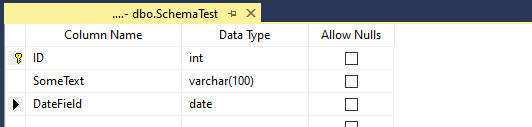
However when we attempt to save the changes we’ll see the error we noted initially which is holding us back:
What we need to do is allow the designer to make the schema changes which may require recreating tables in the process.
Allow recreating tables
In order to allow the designer to make these types of changes we’ll have to jump into the Options dialog to disable the option mentioned in the warning message which is preventing us from saving.
You can open the Options dialog via `Tools > Options` within Management Studio. When in there we want to navigate into the node `Designers` and then `Table and Database Designers`. On this tab we have the option `Prevent saving changes that require table re-creation` which will be checked and we need to un-check it as below:

Now that the option has been disabled if we go back into the designer and save the changes to our table we won’t receive any warning and the table will be recreated, repopulated and swapped out behind the scenes.
Wrap up
The designer is a preference of mine when doing early stage prototyping type work however I understand it’s not to everyone’s tastes. If it’s something you’ve used before then you may have come up against this issue so hopefully this might help someone else out of a jam.
This example highlights where the designer is being overly cautious as we know that there’s only a small amount of data and all of our records have data in the fields. The same change could quite easily be taken care of with a pair of ALTER TABLE statements to update those fields.
I will note that we need to be more mindful with this safety measure disabled. If we have changes which require recreating tables with large amounts of data, indexes or constraints this may cause extended contention or downtime in our environments. When availability is key – anywhere outside of development typically – then we may want to look at performing the changes via regular SQL DDL commands and we’ll have more control over what is being done and now.
 Andy Brownsword