
One of the most time consuming tasks in Management Studio is repeating the same changes across multiple lines of a query. The answer to this? – Multi Line (or Column Mode) Editing.
Here’s a quick post to explain what it is, how to do it, and examples to see it in action.
What is multi line editing?
Exactly what it says on the tin – we’re editing multiple lines of text in our query at the same time. This can allow us to add, modify, or remove text just as we would usually when editing a single line.
Let’s look at an example of it in action. Below we see a JOIN has been added to a table which has columns of the same name. This is how we’d add a prefix to existing fields:
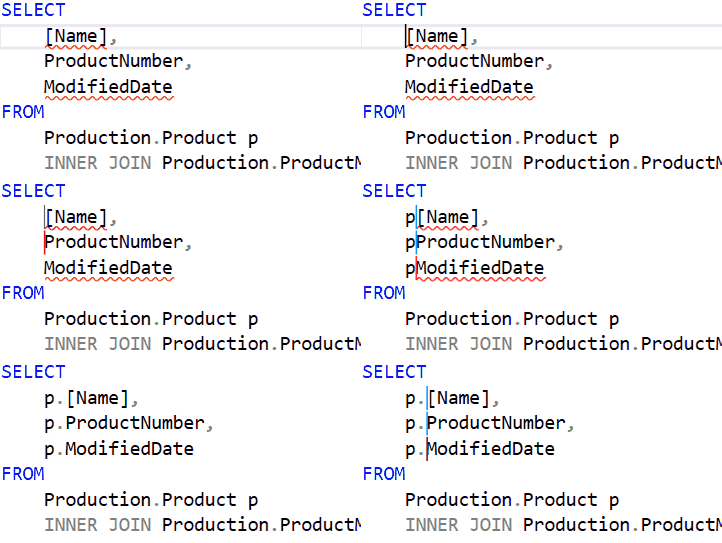
How do we do that?
To perform multi line editing we simply hold the Alt and Shift keys and use the Up or Down arrows to select the additional lines which we want to edit.
When we’ve selected multiple lines to edit we’ll have a multi-line cursor showing which lines we’re editing, which can be seen in the example above.
This can also be achieved with the mouse too, holding only the Alt key but click and drag to select the lines to edit.
Once you’ve got the lines selected then type away, whatever text you want to insert, delete, backspace, tab indenting. Go wild with it.
Let’s see that again
Let’s look at a slightly larger example which can be quite common. We’ve got a list of values and want to perform an IN clause. Why don’t we format all of those values at the same time?
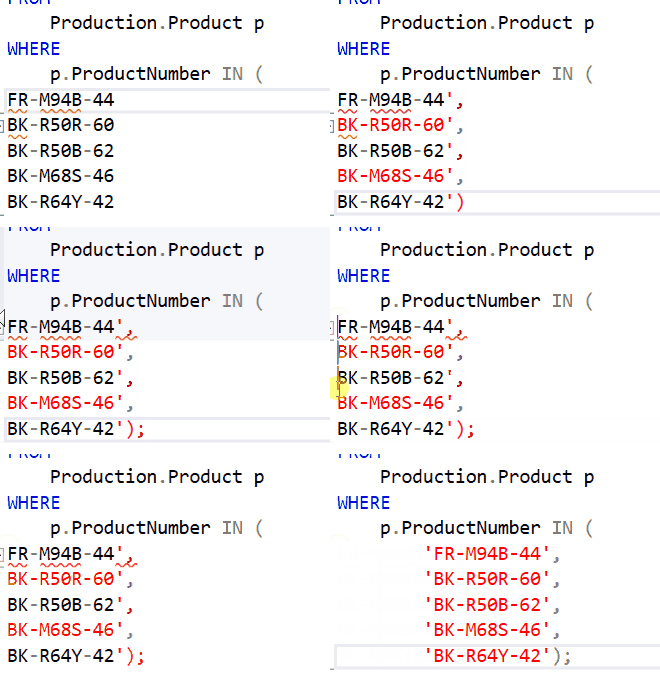
This technique isn’t limited to a handful of records like you see here, you can modify hundreds of rows in your query in the same way for those extra long lists you have.
But wait, there’s more!
It’s not just a bit of adding or removing text we can do with this technique – it also supports cutting, copying and pasting too!
Here’s an example showing cut/paste in action where the INSERT statement has been written with two of the values in the wrong order. Let’s fix that:
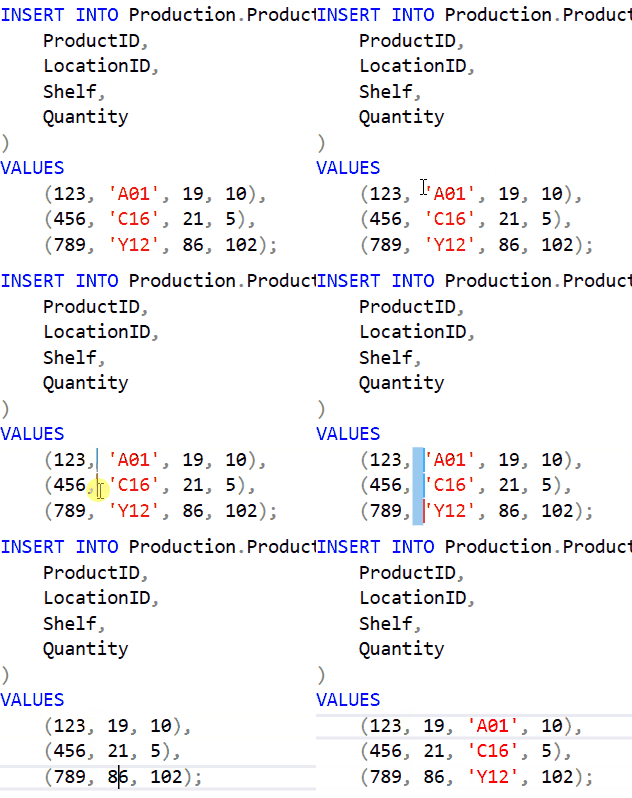
I suppose we could have changed the field order but that just wouldn’t have been as fun would it.
Jagged text
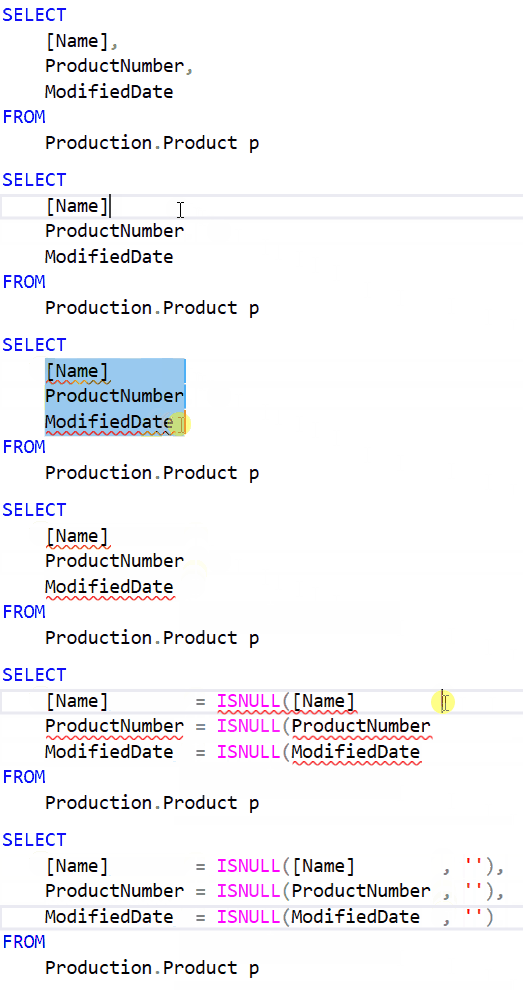
I’ll admit that whilst this is a fantastic feature it does have a clear drawback – when your text doesn’t line up.
Since this works by performing the same action across all lines at the same position those situations can catch us out. You’ll see all these examples have been very structured in the positions where we’re editing.
Here’s an example of some text which isn’t aligned. The changes aren’t quite as tidy as the previous ones but we can still leverage the feature to help us:
Wrap up
Here we’ve had a brief look at how to boost our productivity in SSMS through the use of Multi Line (or Column Mode) Editing.
This can help out in all sorts of scenarios like we’ve seen here – adding table aliases, formatting an IN clause, or shuffling a bit of text around. It’s a very versatile tool.
In all honesty the cherry on this cake is seeing someone’s expression the first time they see this in action. Priceless.
 Andy Brownsword