
Configurations for Integration Services packages allow us to tailor their execution without needing to redeploy. There are two main ways to manage these configurations – Package Configuration and Project Configuration. In this post we’ll look at the Package Configuration approach.
Package deployment
The ability to use Package Configuration is only available when the project is using the Package Deployment model. This is not the default so you may need to convert your project:

Note that if you have any packages with Parameters defined you’ll need to remove those and adjust your package accordingly.
Package Deployment doesn’t share any configuration across the whole project. When converted, you’ll see nodes for shared connections (Connection Managers) and parameters (Project.params) will be removed in Solution Explorer.
Once that’s done we can get onto the package configuration.
Sample Package
To demonstrate the configuration I’ve created a package which has a couple of variables:
ImportDirectorywhich is the path to a directory to load some data fromFilePathis based on an expression appending a file name to theImportDirectory
In addition there are a couple of connections:
FileToLoad.csvwhich uses theFilePathvariable to point to a filelocalhost.Blogas a database to load the file contents into
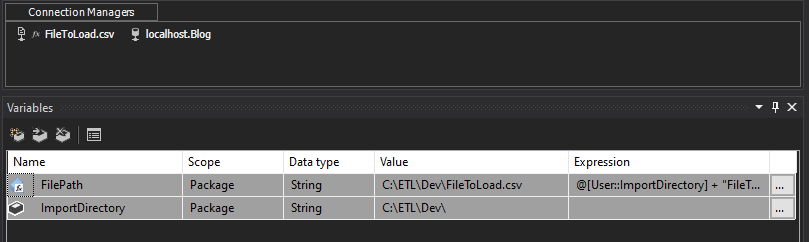
There is a variety here as we don’t need to make everything for these configurable. We’ll be able to choose which parts of these we need to when building the configuration.
XML configuration
With the project converted to the Package Deployment model we can enable Package Configuration for our package. On the canvas of the package we can right click and select the ‘Package Configurations…’ option which is now available.
On the dialog which appears we need to enable package configurations and then can add a new configuration. There are a few different configuration types available:

Two of the more prominent options are XML and SQL Server configurations. Both of these allow the configuration to be stored outside of the package and the SSIS environment. Both of these support good source control or automation practices as they’re structured data.
We’ll start with the XML configuration.
Once we’ve pointed the wizard to our file to use we’ll be asked to select which properties we want to use in this configuration. There’s a lot of choice. We want to be selective in what we choose so the resulting configuration isn’t overwhelming.
In this example I’d choose:
- The
ImportDirectoryis something which could change between environments or with changes to infrastructure. TheValuefor this would be beneficial - With the
FilePathwe aren’t concerned by theValueas its built dynamically, so here we want to configure theExpressionproperty - The
FileToLoad.csvconnection doesn’t need configuration as its driven dynamically from the file path. Not everything needs to be configured externally - A database connection is very common for configuration so we certainly want the
ConnectionStringproperty exposed for configuration
Select each of the options as needed:
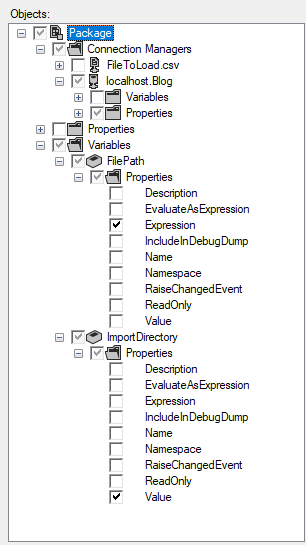
Once complete we can proceed to a summary of the properties which have been selected and once confirmed the XML will be produced. Below is the summary and resulting XML configuration:

<?xml version="1.0"?>
<DTSConfiguration>
    ...
	<Configuration ConfiguredType="Property" Path="\Package.Connections[localhost.Blog].Properties[ConnectionString]" ValueType="String">
		<ConfiguredValue>Data Source=localhost;Initial Catalog=Blog;Provider=SQLNCLI11.1;Integrated Security=SSPI; ... ;</ConfiguredValue>
	</Configuration>
	<Configuration ConfiguredType="Property" Path="\Package.Variables[User::FilePath].Properties[Expression]" ValueType="String">
		<ConfiguredValue>@[User::ImportDirectory] + "FileToLoad.csv"</ConfiguredValue>
	</Configuration>
	<Configuration ConfiguredType="Property" Path="\Package.Variables[User::ImportDirectory].Properties[Value]" ValueType="String">
		<ConfiguredValue>C:\ETL\Dev\</ConfiguredValue>
	</Configuration>
</DTSConfiguration>
As we’ve been selective with the properties which we’ve chosen the resulting file isn’t unwieldy.
SQL Server configuration
We’ll look at the same for the SQL Server configuration.
When changing to the SQL Server option we’ll be able to select a database and have a popup to automatically create a new table: dbo.SSIS_Configurations. This is where the configuration will be stored:

We also need to provide a ‘filter’ for the configuration. This is due to multiple packages being able to share the same configuration table so we want to make each package unique. This can be found hidden below the table selection:

(I’ve seen this hidden as above on a few occasions, may just be my environments, YMMV)
Pop something unique in there so you can proceed. After going through the same process with the connections and variables we have a similar summary available and the details will be in our new table:


That’s all there is to it. When our package is re-opened it’ll pick up the configuration from whichever sources we have in place and apply those to the relevant properties.
Multiple configurations
Multiple configurations can be used for a package. If you wanted to configure connections in SQL Server and variables in an XML file that’s absolutely fine. We also created two sets of configuration here – which use the same values:

The order the configuration is presented here is the order in which it gets applied to the project. That is to say the top entry is applied first and lower entries will override these. The top entry isn’t the highest priority.
Our original XML configuration lists the ImportDirectory using a Dev subdirectory:

To demonstrate the database configuration taking precedence, I can update the value for ImportDirectory:
UPDATE c
SET c.ConfiguredValue = 'C:\ETL\NewDev\'
FROM dbo.[SSIS Configurations] c
WHERE c.ConfigurationFilter = 'MyFirstConfig'
	AND c.PackagePath = '\Package.Variables[User::ImportDirectory].Properties[Value]'
When the package is then closed and reopened we can see the variable has taken the SQL configuration over the XML configuration as it was applied afterwards:

Wrap up
In this post we’ve looked at how Package Configuration can be used to customise execution of a SSIS package without the need to change the underlying package.
Of the options available we’ve demonstrated the XML and SQL configurations. Both of these options can be beneficial when using source control due to their structured nature. We also looked at how the package behaves when multiple configurations are present.
Where the SQL option can shine compared to the XML choice is the ability to easily have the package update it’s own configuration. This could be beneficial when using a ‘last run date’ parameter which might otherwise be in a separate control or config table.
With all of that said…
Package Deployment is referred to as ‘legacy’ by Microsoft but I think its valuable to be aware of the process as established integration environments may use this approach. Project configuration and deployment is more typical to be seen (as it’s been around over 10 years) so we’ll take a look at that next time.
 Andy Brownsword
4 replies on “Controlling SSIS with Package Configuration”
[…] Andy Brownsword gives us a blast from the past: […]
[…] week we looked at configuring SSIS packages using package configuration. This week we’ll look at another approach for configuration: Project […]
[…] I can’t believe we’re still going with configuration after looking at package configuration, project configuration, Visual Studio configurations, and SSIS environments. But […]
[…] you wanted a quick refresh, I’ve previously looked at Package Configuration and how we set it up, including the SQL Server […]