
A consumption based App Service Plan in Azure provides us with a pay-as-you-go model for Function usage. This can help reduce spend from Premium plans where those plans exceed the requirements of the function, for example low volume or intermittent work.
Unfortunately you can’t move a Premium plan to Consumption based via the portal. Instead we’ll demonstrate how to use PowerShell to achieve this.
When creating a function, the lowest cost plans available are typically Free or Shared options for development. Besides not being production plans, these are limited to a set amount of compute each day:

Consumption plans bridge a gap between the compute limited development plans, and the Premium production plans which come at a higher cost. They provide a lower cost option for production workloads as the cost will scale with usage.
Once you’re using any of the non-Consumption based plans however, there’s no way to change the plan to Consumption based through the Azure portal. We’re starting with an Premium plan:

We can fix that with PowerShell. First up we need to get the Azure module (Az) installed:
Install-Module `
    -Name Az `
    -Repository PSGallery `
    -Force
Once that’s done its thing we need to get connected to our Azure account:
Connect-AzAccount
If you need to change subscriptions once authenticated use Select-AzSubscription with the SubscriptionId parameter.
The Get-AzAppServicePlan function can retrieve our plan, and we can see the existing service plan by checking the Sku property returned:
Get-AzAppServicePlan `
    -ResourceGroupName "Blog" `
    -Name "Blog-App-Service-Plan" `
    | Select -ExpandProperty Sku

Now let’s go and change that to a Consumption based (Y1) plan directly:
Set-AzAppServicePlan `
    -ResourceGroupName "Blog" `
    -Name "Blog-App-Service-Plan" `
    -Tier "Y1"
Note that if you’re using features for the Function which require one of the premium plans – for example Always On – then this operation may fail. The exceptions raise may not be very helpful.
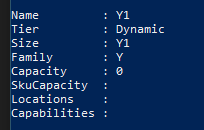
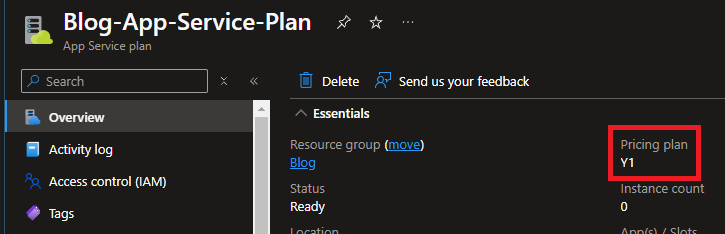
Once changed, if we rerun the check in PowerShell and review the portal we can see the plan has changed to the Consumption (Dynamic) sku::
Wrap up
In this brief post we’ve looked at how to move a Premium service plan to a Consumption based plan programmatically. This option isn’t available via the Azure portal but can be achieved with PowerShell.
The Consumption plans will have reduced features compared to the more premium plans. If those features aren’t required and especially if the Function isn’t frequently used, this can be a great option to reduce expense for your subscription.
 Andy Brownsword