Integration workflows will typically involve handling files. As part of that we’ll need to move them around, for example moving into an archive directory.
The File System Task component can be used for a variety of operations such as creating directories or copying files. Here we’re going to look at two specific operations to help shuffle files around: Move and Rename.
Honestly this is written for myself. I need to do this infrequently enough that I don’t always make the right choice first time. Let’s dive into the options.
Moving a file
Within the File System Task options we’ll first look at the Move File operation. Below is an example configuration and I’m using variables for the Source and Destination:

The Move File operation will take the source path for a file and a destination directory to move the file into. The file will be moved into the directory and retain its existing name. If you check out the online documentation it clearly states:
When moving a file, do not include a file name in the directory path that you provide as the destination.
The variables for a Move File operation would look something like this:

This will result in the Import.csv file being moved to the Archive directory and keeping its current name.
This can be great if the files we’re handling have unique names. If they are the same however we may need to take different action. What if we want to change the file name?
Renaming a file
We’ll shift over to the Rename File operation. The configuration looks the same as above when using variables, with only the Operation changed:
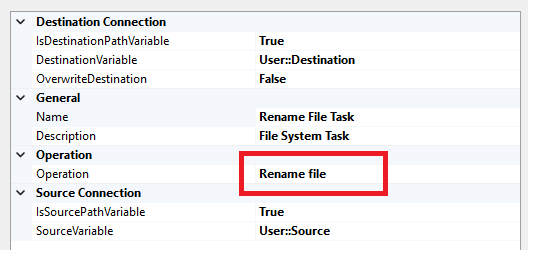
The Rename operation will take the full path for the source file and a second full path for the destination. Our variables may look at a little something like this:

However that’s not the whole story. The path doesn’t need to be in the same directory so we’re actually able to both move and rename the file at the same time. In this case the variables may be:

This configuration will both move the file into the Archive directory, and also rename it. If we’d chosen the same file name with a different directory it would behave like a Move operation.
Moving into SSIS 2017
We’ve seen how we can use the Move File operation to move to a different directory, and then the Rename operation to both rename a file and move it to a different directory.
How about the best of both worlds?
From SQL Server 2017 the Move File operation changed. Now the destination in fact supports either a directory (as per legacy behaviour) as well as a full path like the Rename File operation.
Any of the variable examples shown above would achieve the same result based on the Move operation. Handy.
Wrap up
Here we’ve looked at the basic File System Task operations to Move and Rename files. These are both frequent choices when handling files such as moving after processing.
Moving files is beneficial when we have different file names which won’t clash. If they would and we need to change the file names then Rename is just the ticket. From SSIS 2017 onwards its the same difference.
Personally I tend to stick to the Rename operation as historically it’s the more flexible of the two. This has consistently supported both moving and renaming files. That may have changed more recently but I’ll lean towards the consistency of Rename across all versions.
I honestly wasn’t aware the Move operation had changed in later versions of SSIS until I started playing with it and saw the different behaviour. The online documentation above doesn’t seem to mention this change so we’ll chaulk this one up as an undocumented feature (isn’t that just a bug?)
 Andy Brownsword
One reply on “Archiving Files with Move and Rename in SSIS”
[…] Andy Brownsword shuffles things around: […]