
A hierarchy of directories which contain files. That’s how we typically think about file storage. That’s not quite the same everywhere. In Blob Storage a file can appear to be in a directory, but when it’s removed so is the directory.
This can occur when using Lifecycle Management to help purge legacy blobs, which can be unexpected. Let’s look at a way we can help remediate this.
Blob storage
We mentioned that a standard file structure – say, on a laptop – will have nested directories which will contain files. In Blob Storage we have Containers which contain Blobs, and that’s it.
The name of a blob starts with what we may consider a directory hierarchy. For example data/import/ToLoad.csv could be the name of a blob and Blob Storage will display the file as being located in the data and import directories.
You could think of the blob name as the absolute path of a file.
The only reason the import directory exists in this example is due to the file. If the file is removed and no others have the same prefix, then the ‘directory’ no longer exists.
The challenge
I was recently asked to look at a storage container where files were manually removed. The team kept an Empty.txt file in the directories to maintain the structure when files were deleted. They wanted the deletion automated.
For a simple purging of old files I jumped into Lifecycle Management to set up a rule to delete anything older than one day:
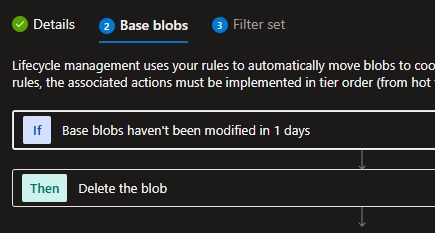
A couple of days later I was contacted because the directory had disappeared due to all of the blobs being removed. They wanted the blobs removed, not the directory!
The issue was that the Empty.txt file which they kept there to maintain the structure was also being removed by the rule. This was removing the directory when browsing the container.
The fix
There’s a couple of options I looked at to help with this.
Firstly within the Lifecycle Management Rule a filter could have been applied. This would allow specifying the prefix of the blobs to purge. If all of the files to purge had a common prefix, this would be a great option.
For example if we consider the following blobs in the data container:
- data/import/Empty.txt
- data/import/import_customers.csv
- data/import/import_products.csv
- data/import/import_sales.csv
We could then use the filter below to limit the files for deletion:
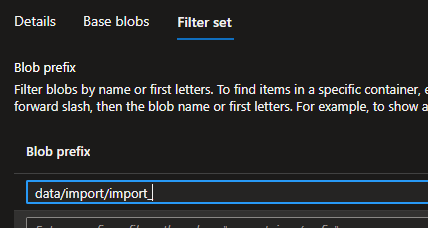
In my case this wasn’t possible as the file names differed. I could have set up multiple rules to capture all variations, but the list would have been extensive.
The alternative approach which I took was to Lease the Empty.txt files. Leasing a blob will lock it from write operations which includes deletion. Even by Lifecycle Management.
A lease can be acquired after selecting a blob, either through the properties of the blob or via the toolbar:

Once a lease has been acquired you’ll see the status of this within the blob properties:

Having a blob with a lease doesn’t break the Rule which has been set up. The purging process will simply skip over any leased files it sees. This is how I was able to retain the directory structure whilst easily automating the purging.
Leasing the file however will stop others making changes to it. If changes are needed the lease will need to be broken, and the re-acquired following the change.
Wrap up
In this post we’ve looked at retaining the hierarchy within blob storage when trying to purge files with Lifecycle Management. We looked at a couple of options – applying filtering to the Rule, as well as taking a Lease on a blob.
From what I’ve seen there doesn’t seem to be an elegant way to achieve this. I guess its what you’re left with when folks are used to seeing a directory structure and trying to retain that.
I had considered an alternative of using PowerShell to query the container and purge all but the empty blob. That felt like a worse option as the script would need a home and it wouldn’t be clearly obvious from the container what was externally deleting the blobs.
I’m sure others have ran into similar issues when transitioning from on-premises file shares to blob storage. I’m all ears for better suggestions!
 Andy Brownsword
One reply on “Retaining Directory Structure in Azure Blob Storage”
[…] Andy Brownsword deletes some files but wants to keep other files: […]