
Last week we looked at using the Azure Feature Pack for SSIS to interface with Azure Storage. Today we’re going to solve a couple of the common issues I’ve seen when using this pack.
Bad or timed out requests
You can set up a connection to the storage and it tests fine, but when you come to performing an upload or download with that connection you might receive one of the following.
Firstly a specific exception for a bad request:

Error: Download task has stopped with exception: The remote server returned an error: (400) Bad Request.
Or something more generic, coupled with a timing out:

Error: Download task has stopped with exception: An error occurred while sending the request
This can be caused by SSIS attempting to create an unsecure connection to the storage. This can be seen when the storage account uses TLS 1.2, for example.
This is very timely as Microsoft is migrating Azure Blob Storage to TLS 1.2 as of 1st November. The Azure Feature Pack uses .NET Framework v4.0 which by default does not enforce strong cryptography, and so cannot connect.
We can fix this by adding a registry key which will enforce a more secure configuration.
As detailed in the Azure Feature Pack documentation, to use TLS 1.2 you will want to add a registry key into two locations:
- Computer\HKEY_LOCAL_MACHINE\SOFTWARE\Microsoft.NETFramework\v4.0.30319
- Computer\HKEY_LOCAL_MACHINE\SOFTWARE\WOW6432Node\Microsoft.NETFramework\v4.0.30319
The key to create is a DWORD value named SchUseStrongCrypto with the Value set to 1. Setting this in both locations above will cover 32-bit and 64-bit usage. It’ll look like this:
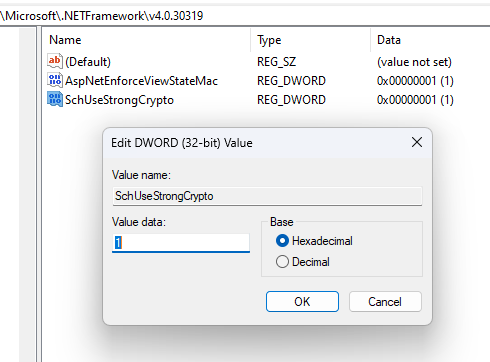
With the keys in place, you will be able to run the package and successfully interface with the storage.
You can read more about the .NET Framework best practices for TLS (and the above registry configuration) here.
Unrecognised connection
When executing a package it can immediately fail during validation. It will report that the Azure Storage connection is not recognised:

Error: The connection type “AzureStorage” specified for the connection manager [Connection Name] is not recognised as a valid connection manager type
This is caused by the feature pack version not matching the environment your package is executing in – specifically 32-bit versus 64-bit installation and environment.
If you check your installed applications, you may find the 32-bit (x86) version of the feature pack installed:

You will need to run your SSIS package to use a 32-bit runtime within the SQL Agent job. You can find this under the job step > Configuration > Advanced, and then the ’32-bit runtime’ checkbox:

The same setting is also available when executing directly from the SSIS Catalog.
With that option selected, re-running the package will be now use the correct runtime and be able to use the connection successfully.
Wrap up
The Azure Feature Pack for SSIS is key to unlocking Azure features within your SSIS workloads. When introducing new functionality it can come with its own teething issues.
In this post we’ve looked at addressing two common issues I’ve seen when first using the feature pack. With a simple change in each case we can fix those issues and keep the developments flowing.
If you’ve hit any other interesting snags when implementing the feature pack into your environments, please let me know in the comments.
 Andy Brownsword
One reply on “Solving 2 Common Errors with the Azure Feature Pack”
[…] Andy Brownsword fixes a pair of issues: […]