
Connecting different versions of SQL Server can allow us to combine or transfer data between environments. This can become a challenge when the versions are really different.
Have you tried to connect SQL Server 2008 to a SQL database in Azure? – it can throw up a few curve balls.
In this post we’ll look at how to solve 3 of the issues you might come up against.
Using a vanilla SQL Server 2008 installation we’ll demonstrate connections to both an Azure SQL DB and a Managed Instance. We have a LinkedServerUser account already set up. Let’s go.
It’s all in the name
We’ll start by creating a Linked Server in SSMS, making use of the ability to connect to an Azure SQL resource. First up, we’ll tackle the Azure SQL Database:
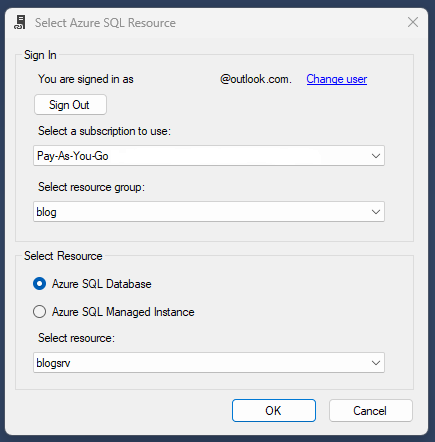
Now we set up the credentials as we’d usually do for a linked server:

Then we run into the first issue:
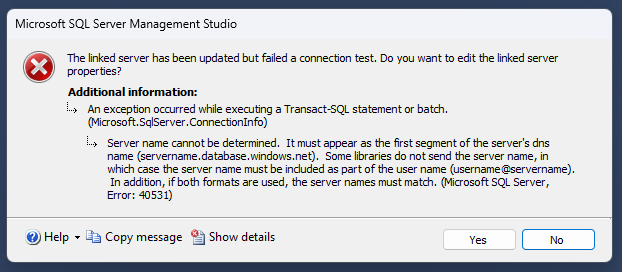
Server name cannot be determined. It must appear as the first segment of the server’s dns name (servername.database.windows.net). Some libraries do not send the server name, in which case the server name must be included as part of the user name (username@servername).
This isn’t something I’ve needed to do before, but let’s go with it. We’ll add the qualified name for the database server to our username in the config:

That’s the first point out of the way, and we now stumble into another challenge.
Hot cuppa TLS
Using the modified login is only the start. Retrying our connection we’re now presented with a warning about the TLS version:

Login failed due to client TLS version being less than minimal TLS version allowed by the server
Thankfully this was patched a while back. Check out this article for more details for different SQL Server versions. For SQL Server 2008 we’ll be installing Service Pack 4 (KB2979596) followed by a security update (KB4057114).
A little while later…
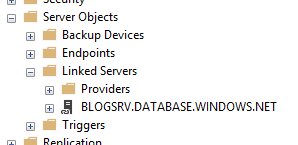
We can try the same again, and we’re in business. Connection established:
Managed instance mysteries
The above is all well and good for an Azure SQL Database. However something seems to be slightly different with a Managed Instance. And I’m not sure why, but here we go.
If we have the TLS patch in place, and we’re using a qualified username, we still can’t connect. It tells us that the login fails:
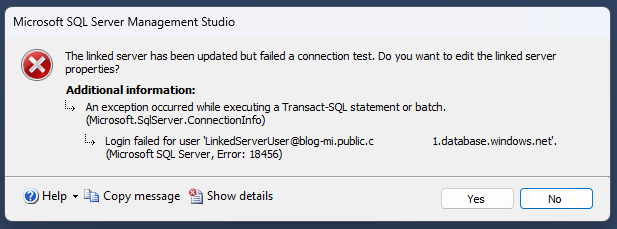
The SQL Server Logs tell us a little more:

Reason: Could not find a login matching the name provided
The Managed Instance doesn’t like our credentials, no account matches. So we’re going to create a new login on the Managed Instance. Including the server name. Let’s call it a fully qualified login:
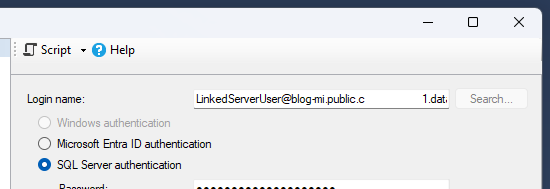
I admit it’s a little… messy. But you know what, it works. With the account in place we can now create the linked server successfully:
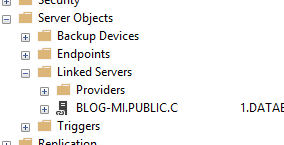
We don’t need both the regular and qualified accounts present on the Managed Instance. The linked server will use the qualified one exactly as we set up. You can drop any regular account, and permissions should be assigned to the new fully qualified one.
Wrap up
In this post we’ve looked at how to solve the challenges we face when trying to establish a Linked Server from a legacy version of SQL Server to a newer Azure flavour.
We looked at 3 different issues which you might face and solved them with the following:
- Fully qualify the username in your Linked Server config
- Ensure your SQL Server is patched to support TLS 1.2
- If you’re using Managed Instance you may need to fully qualify the username in the Managed Instance too
I’ve used SQL Server 2008 as the demonstrator for the ‘legacy’ version of SQL Server here. The same setup on a new installation of SQL Server 2022 is fine. I’ll be honest – I haven’t tested variations in between to see which versions change the behaviour.
I hope this demonstrates a worst case scenario for any issues you may face with these connections, so you can solve them regardless of version.
 Andy Brownsword
2 replies on “Legacy Problems for a Modern Solution: Establishing a Linked Server into Azure”
[…] Andy Brownsword goes old-school: […]
[…] at more obscure topics – application locks, the Halloween problem, database snapshots, linked servers into Azure, and obscure implicit conversion […]