
Parameters in Paginated reports allow for us to tailor report contents based on user selected criteria. These were inherited from Reporting Services as a precursor to the slicers and filters in Power BI reports.
Coming from a Reporting Services background I have a soft spot for pre-defined paginated reports. However these parameters can sometimes get a little unruly. Here we’ll see what that looks like and how we can go about resolving the issue.
Parameters gone wild
Parameters can be freely added in the Report Data pane when constricting a report. They can also be added automatically when managing the data sets. What doesn’t always go so well is removing them.
When removing parameters – particularly where we’ve previously re-ordered them – we can find the they end up in odd positions, for example:

The same thing also happens in Report Builder if you’re using Reporting Services too.
Changing parameter ordering in the Report Data pane won’t help, it’ll simply move them around in the same positions. Adding and removing more parameters trying to plug the gaps won’t help either, in fact that might make the situation worse.
Whilst the Report Data pane lets us manage the parameter configuration and ordering, we need to turn to another pane to manage how they display.
Parameters pane
There’s a Parameters pane which can be used to manage the display of the parameters. This can be enabled from the View menu:

If you’re coming from the legacy Report Builder versions (i.e. v2, v3), this will be new for you.
Once enabled we have a new pane which shows how the parameters will be displayed. Here the parameters are laid out in a grid, and we can see the problem:

Parameters can be easily drag and dropped between the different cells so we can reorder them as required. A super quick fix, if you know where to look.
In addition to fixing the issue, the context menu for this area allows for customisation. We can tailor the display further such as adding or removing columns:
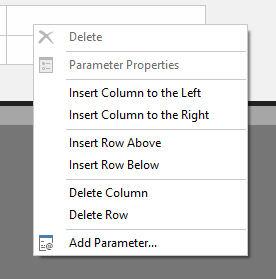
If you’re so inclined, you can use these options and the customsation to create some weird and wonderful combinations. Go wild with it:

(Your report consumers may not be so thrilled)
Wrap up
In this post we’ve seen how Parameters can go awry when building Paginated Reports in Power BI, and how to solve that.
The fix itself is pretty straightforward. We simply need to make use of the Parameters pane to reorganise them as needed.
This wasn’t a thing when I was raised with the original Report Builder, or subsequent version 2 or 3 (before we went back to just Report Builder). Back in the day we couldn’t customise the parameters in this way so this wasn’t an issue.
If you’re in the same boat as me and stumbled upon this odd behaviour with a confused look on your face – welcome to the club.
 Andy Brownsword
One reply on “Fixing and Customising Parameter Display in Power BI Paginated Reports”
[…] Andy Brownsword doesn’t like having parameters all helter-skelter: […]