
When creating SQL Agent jobs to execute SSIS packages we can choose the level of logging to be captured. Different settings are more beneficial under the right circumstances so it’s important to understand the differences to make the right decision.
These settings control the internal logging done by SSIS. This is out of the box and freely available, so why not use it effectively.
The setting can be found when executing a package manually or under the job step, and then the Configuration and Advanced tabs. The default setting is ‘Basic’, but what does that contain?
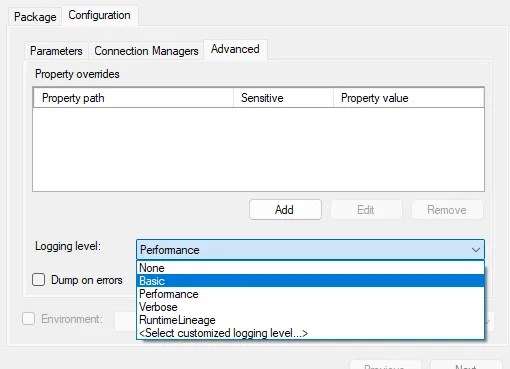
Here are a rundown of the options available, what they contain, and when they may be of use for you.
None
That’s not strictly true. You’ll still get a record of a package executing, and run duration for tasks within the package. Other than that though, you’ll be out of luck. There won’t be any warning or error records created if things go awry.
I can only see this being beneficial under a few very specific conditions:
- There is minimal work being done in the package, for example orchestrating stored procs (which contain sufficient logging and error handling)
- The package has its own custom logging in place and not needed via this method
- Attempting to extract absolute maximal performance running a vast number of fast operations that lead to sufficient overhead from logging
In reality I’d opt for any other option as having minimal visibility of what’s going on in the package will come to bite at some point.
If you choose this level you’ll see execution records in the internal.operations and internal.executions tables, and the component level runtimes in the internal.executable_statistics table.
Basic
This is the default option.
The basic level will log all but the most detailed diagnostic events. That means we’ll have the warning and error messages we want to see. It’ll also mean that for each component we have pre- and post- messages for both validation and execution. This can be a lot of detail for large packages.
If you’re in a position to evaluate the logging level you’re using for packages, you’re also likely at the stage where these details will be useful for diagnosing and performance tuning the packages.
For most packages this is a perfectly sane default. It gives good coverage and allows you to effectively troubleshoot any issues. For edge cases such as packages running a large number of small tasks, an alternative may reduce the overhead of logging.
This logging level will populate the same tables as None, with the addition of extra details in the internal.event_messages and internal.operation_messages tables.
Performance
This doesn’t mean it makes your package run faster.
The performance logging helps us to diagnose package issues by recording performance statistics, along with information and error messages. Rather than only providing component details from the package, this includes subcomponents within data flows.
Data flows can be long and complex, so having this level of granularity is key to understanding what’s happening within them. Once top level changes have been identified from Basic logging, Performance will help you drill into the next level.
The details recorded by Performance logging allow the Execution Report within SSIS to populate the data flow component details:

This level will record the same details as None, plus use the same tables as Basic to record Information and Warning messages. Additionally it’ll also record a lot of detail about data flows in the internal.execution_component_phases table which isn’t particularly user friendly, but drives the metrics above.
Verbose
You want it all, plus the kitchen sink? This is it, pretty much everything you could ask for. Along with heaps you probably didn’t.
The verbose logging level is just that. It covers all the previous types of logging, and throws diagnostic details on top for heaps more records.
I have never found a need for this level of logging. I imagine the volume of data being recorded could impact large packages or data flows to a not-so-insignificant degree. But its there if you really need it.
As mentioned, this covers all the previous tables and entries as above. It also adds internal.execution_component_phases which is also not so user-friendly like the component phases above.
RuntimeLineage
This is a slightly different type of logging. It’s not designed to help us diagnose anything within the package, its to contribute to data lineage within the organisation.
For those not familiar, data lineage is the tracking of data as it flows through various applications. This helps to define where it originates, how it changes, and what it’s used for. Consider a report which says “Profit margin: 21%” and needing to explain how that figure is derived – that is what lineage can deliver.
That sounds great, but its quite a wide scope for SQL Server and SSIS. That’s why this type of logging simply records what has happened. The lineage would be collated by a separate solution as part of a broader view of the data landscape within an organisation.
If you need to deliver lineage, give it a try. If not, this is niche, so stick with the other options above.
This logging is a watered down version of the Basic logging, with the addition of the lineage elements recorded in the internal.event_message_context table.
Roll your own
There is one final option. If none of the above options sound just right then you’re in luck. You can create your own customised logging level tailored to your needs:

Within here you can create your own level (or levels) and even use existing logging as a baseline:

If you want the minimal logging of None but with the Information and Warning messages included, go for it. You’ll see the Statistics and Events tabs where you can manually tweak to get it just right for your needs:
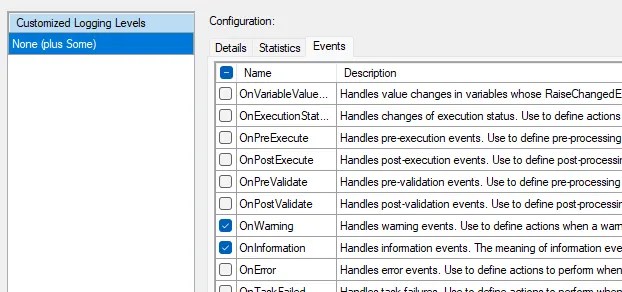
Once it’s all set up, return to wherever you’re executing the package and choose the <Select customized logging level...> option to be presented with your custom list. You can review the Statistics and Events from here too using the ellipsis.
Wrap up
In this post we’ve looked at the logging levels available when executing SSIS packages. We’ve covered what types of details are recorded, the tables they’re recorded in, and when they can be useful.
In summary of them:
- None: Minimal logging, critically excluding error messages
- Basic: Covers all the bases and a little more, great for high level troubleshooting
- Performance: Similar to Basic but for tuning data flows specifically
- Verbose: For everything you could ever need, and everything else you don’t
- RuntimeLineage: For the specific scenario of tracking data lineage
- Custom: For fine tuning and recording a specific combination not available above
In reality, the default Basic logging can be left in most instances. It gives us plenty of details for troubleshooting and performance tuning, without too much bloat. If you fancy switching it up though why not try out one of the others.
Or go rogue and roll your own, you rebel.
 Andy Brownsword
3 replies on “Choosing the Right SSIS Logging Level”
[…] Andy Brownsword does a bit of logging: […]
[…] a script I use as a starting point. It’s based on the details recorded under the Basic logging level we looked at last week and provides a helpful […]
[…] can be helpful to change the SSIS logging to ‘Performance’ or a custom level to dig into these. That will populate the Execution Performance report and allow you to identify […]