
The standard SharePoint connectors in Logic Apps authenticate with Entra accounts. When you want to use an App Registration instead, it’s a little trickier.
In this post, we’ll show how to interface with the SharePoint REST API using an App Registration authenticated with a certificate securely stored in a Key Vault.
Configure app registration
First up, we need to create a certificate that we’ll use to authenticate the App Registration. In your Key Vault, and create a certificate with whatever properties you fancy:
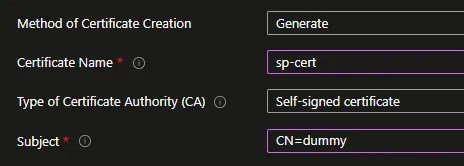
Once created, we’ll want to download a copy of the public key to attach to our App Registration. Head into the certificate and select ‘Current Version’, then ‘Download in CER Format’:

Now let’s jump over to the App Registration to get it configured. Under the ‘API permissions’, ensure you have appropriate access to SharePoint. For this example, I’ll use Sites.ReadWrite.All, but you can opt for Sites.Selected to be more granular:

Next, head into ‘Certificates & secrets’ for the registration, and upload the certificate you just downloaded:
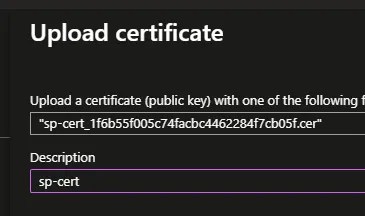
The App Registration is now ready and we can move on to the Logic App.
Building the logic app
For this example I’ll upload a file to SharePoint. For other folder and file operations, check out these examples.
The authentication is based on the certificate so we need to grab that from the Key Vault. Using the ‘Get secret’ action we can connect to the Key Vault and retrieve our certificate (as a base-64 string):
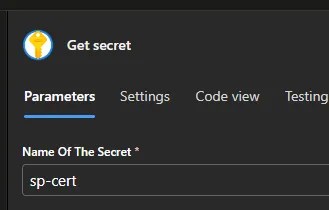
We also need some content to upload so I’ll pop in a ‘Get blob content’ action to read a file from Azure Blob Storage. Nothing unusual with this action, point it where needed:

Now we’ve got the pieces, we can put together the request to the SharePoint API. There are two parts to this. The first part is to call the relevant URI with the appropriate method and body. The content is sent in the body and here I’m using the File Content property from the blob action above:

For the authentication (which is what we’re here for), we can use Active Directory OAuth to authenticate the App Registration. Set the Tenant, Audience, and Client ID appropriately, and then select the Credential Type as Certificate. The value attribute from the Get Secret action (which contains the certificate from the Key Vault) can then be used in the Pfx field to authenticate:
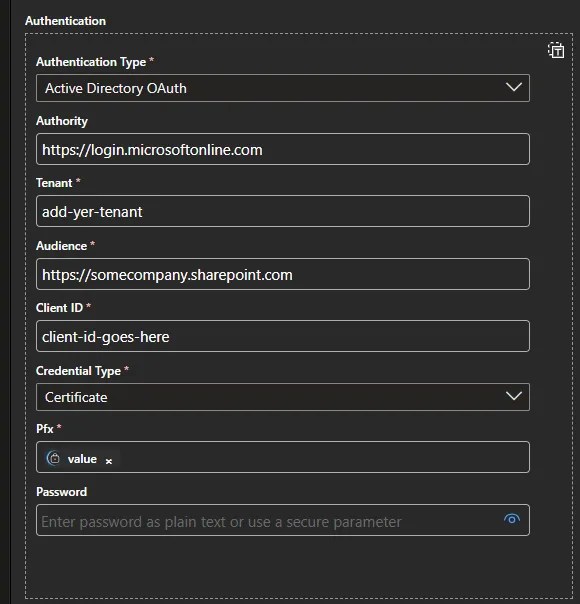
That’s all there is to it. With a certificate-based App Registration, your Logic App can securely perform SharePoint operations without relying on a specific user account.
⚠️ Note: The example above uses the SharePoint REST API v1, which aligns to legacy features. A newer v2 endpoint is available which is more closely aligned with Microsoft Graph – worth exploring if you’re building greenfield or extending existing Graph-related solutions.
 Andy Brownsword