
When building Azure Logic Apps we can use the Azure Data Factory connector to start a pipeline. However that action simply triggers a pipeline and doesn’t wait for it to finish. If your downstream logic depends on the output – for example to collect a file – this can cause issues.
In this post I’ll demonstrate how to control the Logic App flow to wait for the pipeline to complete before proceeding.
Starting a pipeline
When using the Data Factory action ‘Create a pipeline run’ from a Logic App, the pipeline runs asynchronously. This happens because the action only creates the run (as the name suggests), or triggers it in Data Factory terms.
Due to this, the action returns immediately once the pipeline has started executing, regardless of how long it’ll take to execute. There’s no out-of-the-box option to wait for execution to complete.
However the action isn’t all bad. It provides us with a crucial piece of information in its output. The Data Factory returns a runId which has been created from the call:
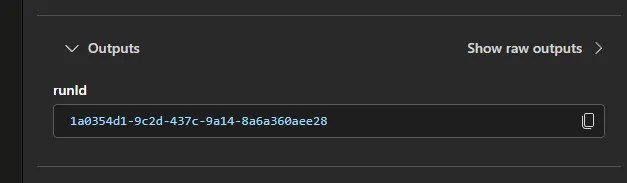
This uniquely identifies our particular execution so if we were to ask for the status of that specific ID from the factory we could see if its complete – and that’s exactly what we’re going to do.
Patiently waiting
Thankfully, this is an easy fix. We don’t need to add too much to halt the flow whilst the pipeline is executing.
We simply want to poll the Data Factory for the status of our run, and keep checking until the pipeline is successful. The solution needs only 3 components:
- An
Untilloop to block the flow whilst waiting for the pipeline to complete - A
Delayto let the pipeline progress before rechecking the status - Data Factory
Get a pipeline runaction to poll the factory for the latest run details
Following a pipeline being started, create an Until loop (we’ll come back to the condition) and add a Delay action inside for an appropriate length of time for your pipeline.
Next up we want to add the Get a pipeline run action inside the Until loop. This needs to be pointed to your Data Factory, and most importantly we want to pass the runId provided when creating the pipeline, for example:
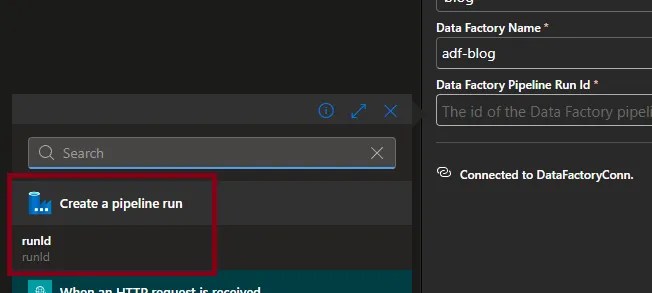
This returns execution details, crucially including the Status. The Logic App identity will need sufficient privileges to query pipeline runs. The built-in role Data Factory Contributor works, although is broad. For a least-privileged approach, create a custom role starting with the following:
Microsoft.DataFactory/factories/pipelines/createrun/actionMicrosoft.DataFactory/factories/pipelineruns/readMicrosoft.DataFactory/factories/cancelpipelinerun/action
Now we’ll get back to the condition for the Until loop. We’ll use an expression referencing the previous action to get the pipeline run details. For this demonstration, we’ll wait until the pipeline has completed successfully. The expression would be:
equals(body('Get_a_pipeline_run')?['status'],'Succeeded')
With everything in place, the app will now wait until the pipeline has completed to proceed. A successful run for a pipeline taking ~10sec using a 5sec delay would look like this:
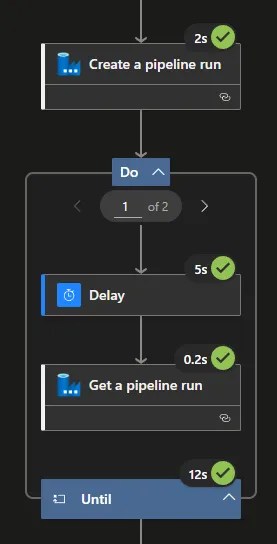
This is very much a happy-path solution to show the structure. Other considerations should be factored into the design to make this more robust.
Going further
There’s plenty of options for extending this solution (and you likely want to). To make the pattern more production-ready, consider the following:
- Check for and react to other outcomes, such as Failed events. The
Untilcondition could be changed to anorto check forSucceededorFailed, or simply not equal toInProgressand use aSwitchoutside of the loop to take action - Impose a maximum runtime based on iterations or time, using the Advanced Parameters available for the
Until. Timeout is defined using ISO 8601 durations such asPT1H. Meeting each of these conditions will exit the loop early, and not fail the action – make sure to catch these - Following the above, the
Cancel a pipeline runaction can be used to prematurely stop the process if not complete within a specific window or it’s passed the limits above - Incrementally increasing the delay by using a variable for the delay time (backoff). This can help avoid excessive polling or hitting API limits if the pipeline is overrunning, as well as avoiding the loop thresholds (from Advanced Parameters above)
There really are plenty of options, but you likely want to layer at least one of these on top of the basic Until loop to ensure a robust implementation.
Wrap up
In this post we’ve looked at how to implement a pause to Logic App flow until a pipeline finishes. This is useful when we’re depending on the output, for example collecting an output file.
The approach interrogates the pipeline execution to determine its status, using a delayed loop to allow processing to continue and polling until we see the desired status.
It’s a very compact, easy to understand, and reliable solution to the problem. Complexity comes from hardening it: handling multiple statuses, long runtimes, or catching an early exit from the loop.
If you find yourself repeating this pattern, consider encapsulating into a reusable, parameterised Logic App.
 Andy Brownsword
2 replies on “Running Data Factory Pipelines in Logic Apps”
[…] Andy Brownsword automates a workflow: […]
[…] week we looked at calling a Data Factory Pipeline from a Logic App. This week I thought we’d balance it out by taking a look at calling a Logic App from an […]