
If you need to create a copy of a table in another database, the ‘Import Data’ option may seem convenient. If you’ve used this method to copy to your dev environment and found things break, this post is for you.
By letting the wizard create the destination table automatically, you might find your schema is missing crucial elements, such as:
- Primary key or identity column
- Indexes, constraints, or default values
- Computed columns (they’ll get materialised)
What looks convenient at first to copy a table can lead to headaches. So let’s solve that.
TL;DR: Create the table manually and then copy the data over. Read on for more details and gotchas.
The reason this happens is that the new table is created based on the metadata of incoming data as opposed to the source table itself. The elements mentioned above aren’t presented in the metadata, so they aren’t transferred to the new table.
Here’s a sample source table:

You can see the metadata available during the mapping phase:
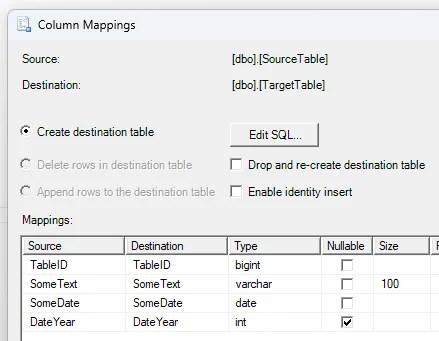
Compared to the source, the target for the copy looks a little barren:
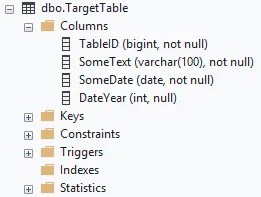
The fix for this? Create the table manually and ensure we include all of the needed elements.
Very simple: right click on your source table and choose ‘Script Table as’ > ‘CREATE To’ > ‘New Query Editor Window’. That looks much better but still not quite right:
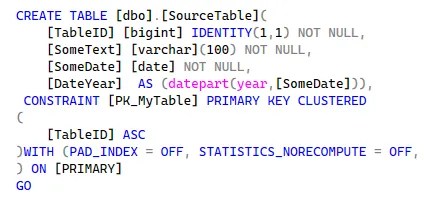
By default there are some elements of the table not scripted, in this case our non-clustered index. That can be remedied from the SSMS options under the Scripting settings:
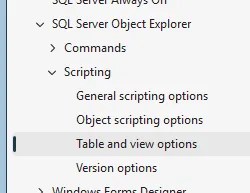
Choose any and all options relevant for your schema, and check out other customisations under the Scripting tabs. Et voilà, a fully scripted version of the table:
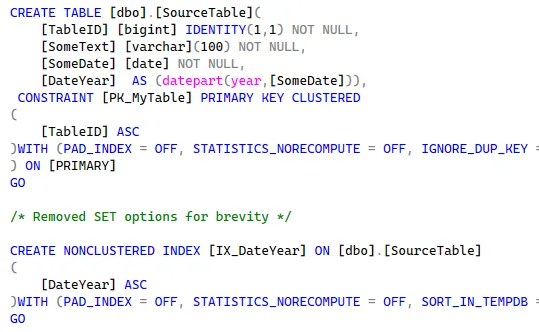
The table can now be deployed followed by the data copy. However with the schema now copied exactly, you’ll need to be mindful of the mapping and adjust accordingly. In this case we need to select ‘Enable identity insert’ and remove the mapping for the ‘DateYear’ column as it’s computed:
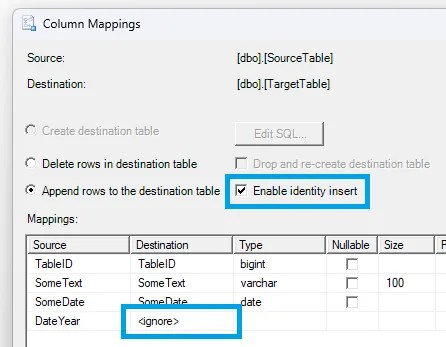
With the schema manually deployed and the mappings adjusted, the import will now do what you likely always intended. This is the most reliable route to using the wizard with no surprises.
 Andy Brownsword
One reply on “The Cost of Convenience with the Import Data Wizard”
[…] Andy Brownsword doesn’t trust wizards, with their pointy caps and long beards: […]