We’ve all got those go-to queries – maybe its for the data warehouse where you need a dozen joins, or it could be that maintenance script where you need the parameters set in a specific way. They’ve been used so often we can either script them from memory or we know exactly where the scripts are stored and exactly what needs to be changed in there. These are examples of places where templates can ease the repetition and save us time and keystrokes.
You can find the templates in SQL Server Management Studio under View > Template Explorer or by pressing Ctrl + Alt + T to pop open the pane.
Within the template explorer you’ll find the laundry list of existing categories which are already documented such as administration tasks including creating users and backing up databases, through to development processes such as creating tables and indexes. It’s worth having a look over as they go more in depth for example the indexes section covering Columnstore and XML.
You can read more about the Template Explorer on the official documentation.
One of the best features for us using these templates however is that we can add our own into the mix for those repeatable tasks which we touched on earlier.
Creating a Template
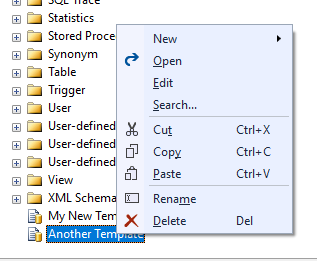
Creating a template is straight forward – we can right click on the root or any of the other folders in the tree and select New > Template and it’ll create a new SQL script in that location which we can start working with.
The instinct is to double click on the template at this point but all we’ll end up with is a new query window. We need to right click on the template and select the Edit option. This will open a blank query tab but you’ll notice the name of the tab is that of the template file – we’re editing the actual template here:
Within this tab we can pop in the query we want to template and hit Save to update your template – note that its not asking us where we want to save the script since it knows its a template which is already on disk (more on this later). Once that’s done we can close the tab and the template is primed and ready to go.
If we head back to the template explorer and again double click on our new template we’ll have our query appear and it’ll be in a new query window ready to run. We can do whatever we like with this query now – run it, change it, save it somewhere else – this is a copy of our actual template so it won’t change the underlying query. If we double click on the template again we’ll get another query window with a fresh copy of the templated query.
That’s it, simple as that! – no need to script out those same dimensional joins again or find the right folder for your diffs on a specific environment.
Using Parameters
Now there may be instances where we want to get a bit fancier with those templates. We can use parameters to inject variables into the queries and change just the parts which we need to. This can be helpful for queries which might need to be ran slightly differently or to help guiding folks along who might not be as familiar with those scripts or processes.
To add a variable into the query you use the syntax <[variable name],[data type],[default value]> and put it straight into the script. See below how you might get the size of a specific database as a basic example:
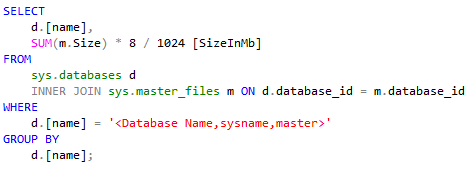
Now when you save that template and then open it back up you’ll see the same text there which isn’t that useful – however if to you go the menu Query > Specify Values for Template Parameters... or press Ctrl + Shift + M you’ll have a dialog pop up which will list all the parameters you’ve got in the script and you can change them from one place:
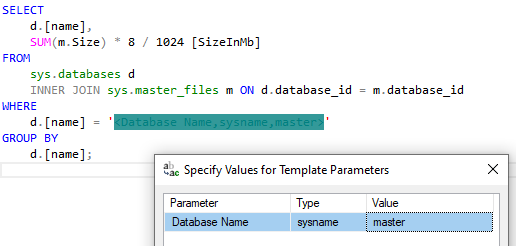
In this dialog you’ll see the default value populated as the value, and as a bonus if you reuse the same variable name multiple times there will only be a single entry in the dialog and that’ll change all instances of it.
It might not be needed too often but its another tool in the belt to save some extra time for those mundane tasks. You can find a little more details on parameters from the official documentation.
Backing Up Templates
Before we wrap this up we should probably touch on where these templates are stored and what we could do with them. All of the templates (including the out of box ones) are flat files within your application data so if we’ve gone to the trouble to craft these queries we could get them backed up, sync’d across multiple machines, share them with colleagues, etc.
The location of these will vary slightly depending on your version of SSMS. You’ll need to check the major version number of your SSMS install from Help > About. For example if you’re running SQL Server 2016 Management Studio this would be 13.0, whereas if its the latest version (v18.9.2 as of September 2021) then this would be 18.0.
Note that if you haven’t opened Template Explorer the Templates folder below may not exist yet so make sure to pop that open first. With the version number in hand you can open the following link via the Run command replacing the version number with what you found previously: %appdata%\Microsoft\SQL Server Management Studio\<VersionNumber>\Templates\Sql
The contents of this folder should look familiar – you’ll have files and folders which directly correspond to what you see in the template explorer. There’s nothing complex in here, you can simply grab your scripts and do with them as you please. You can copy them out if you were backing up, or copy some into there to start building your catalogue. If you do make any changes to the files manually you’ll need to reopen Management Studio for the Template Explorer to reflect them correctly.
There’s also an article from a few years back by Carl where he discusses using a symbolic link to repoint his templates to a source control folder to help share them with his team, a great suggestion!
 Andy Brownsword
One reply on “Using Templates in Management Studio”
[…] to the script itself, below is what I use in a template along with the parameters which covers my typical use […]