
Whether running Data Factory, Synapse, or Fabric pipelines, things go wrong – and the de facto response is to send an email. We’ve looked at sending emails from pipelines before, but at scale they can become noise and are easy to ignore.
A more effective option is to surface alerts where collaboration already exists, such as Teams.
In this post we’re going to start looking at using Teams and consolidate notifications into a channel. This functionality gives team members visibility, the ability to update in threads, and the option to tag people for a tighter response loop than typical emails bring.
Sending a message
To interact with Teams we’ll take the same approach as email – leverage Logic Apps and their connectors to simplify the process and avoid the Graph API.
Using the same framework, we’ll use a Request trigger with the following schema:
{ "type": "object", "properties": { "Message": { "type": "string" }, "ReplyToMessageId": { "type": "string" }, "TagEmail": { "type": "string" } }, "required": [ "Message" ]}
This caters for posting, replying, and tagging, which we’ll cover below 👇
To share a message, we can use the relevant Teams action. For these we’ll need to connect via Entra with an account that has permission to post in your Team and channel. This is the case even if you intend the post to originate from the Flow bot.
In this case we’ll use the Post message in a chat or channel action and populate the Message field based on the payload:
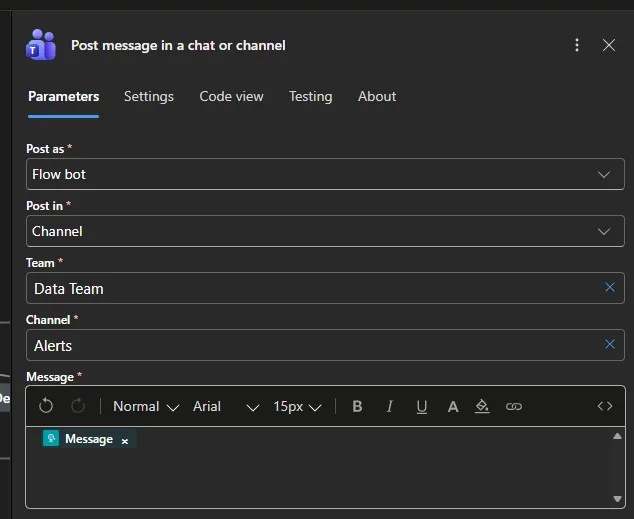
You could include the Team and channel in the payload and populate those dynamically if you want to use this more generically. You can find those by copying a link to the channel and inspecting the URL for the group (Team) and channel identifiers.
A sample payload:
{ "Message": "Sample message"}
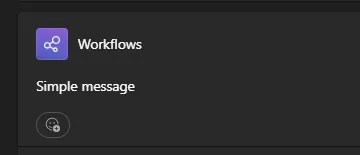
Now that’s nice and simple, let’s step it up.
Posting updates
Let’s consider we want a thread for a particular job where updates should be posted as it progresses. The same connector allows us to reply to messages too, and that’s why we’ve included ReplyToMessageId in the payload.
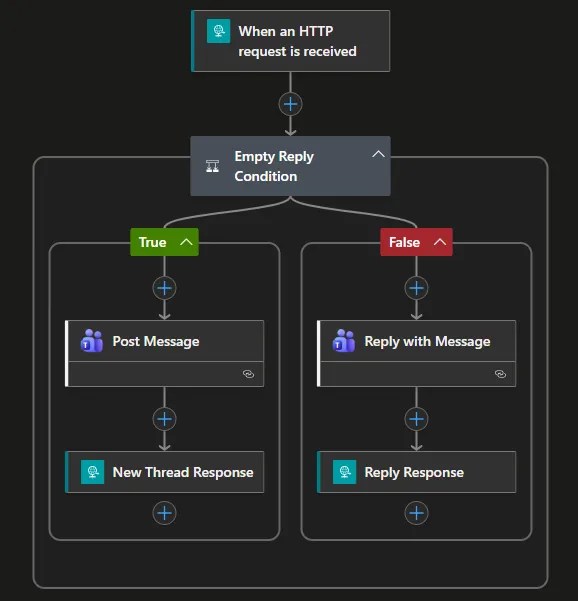
Our first step is adding a Condition action to determine if we’re posting a new message or replying to one, as they’re different actions. Here’s the condition:
empty(triggerBody()?["ReplyToMessageId"])
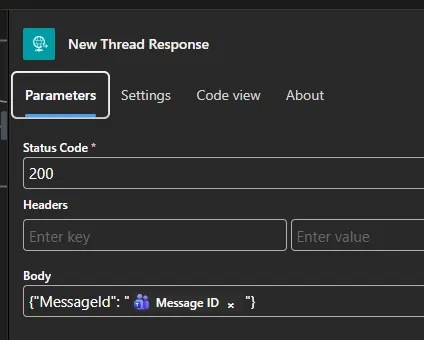
Now we can move the Post Message action under the True branch. We also need to add a Response here to return the messageId from our Post action so the caller can store this and reply in the future. The body should be a JSON formatted response which can be parsed by the pipeline, for example:
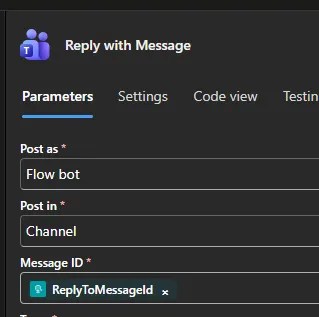
Next up we need to add the Reply with a message action under the False branch of our condition. The setup for this is exactly the same as posting a message, but now with a Message ID field we need to populate with the field from the request:
For completeness, add a response to this branch, so the result will be something like this:
A sample payload:
{ "Message": "Now with a reply 👆", "ReplyToMessageId": "11112222233333"}
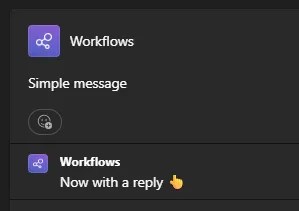
This is helpful for seeing progress for long running jobs if you have frequent check-ins. But what if something goes wrong and you want someone’s attention?
Tagging folks
Finally we’ll look at tagging folks in the messages. This is particularly useful to either get someone’s attention, or make others aware of who is responsible or dealing with an issue.
Tagging isn’t as simple as including @Andy within the message. We need to use a specific action to get an @mention token – Get an @mention token for a user – which can then be added to the message.
We’ll move the message to a variable (to be used by the Post / Reply actions), and another Condition to check if the TagEmail field is populated. Where it is we’ll grab the token and include it in the message:
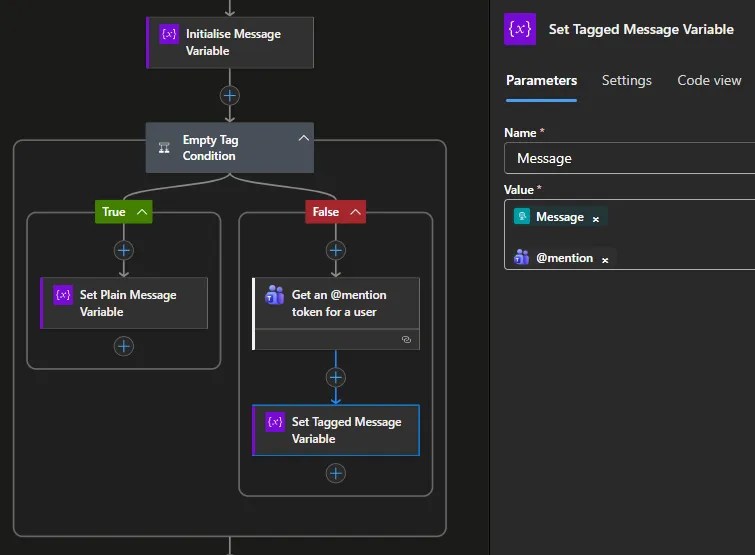
The Post / Reply actions now use the new Message variable (which includes the tag if needed) rather than the raw payload variable.
So we can use a payload like this:
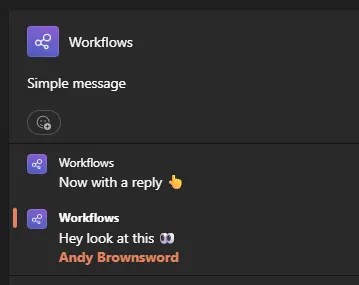
{ "Message": "Now with a reply 👆", "ReplyToMessageId": "11112222233333", "TagEmail": "andy.brownsword@..."}
Wrap up
In this post we’ve looked at using a collaboration tool to centralise visibility of notifications and avoid the noise which can come from isolated email alerts.
We’re still using the same type of plain-text alerts as we’d get via generic emails, but with the additional ability to use threaded responses and tags to provide more structured presentation.
These types of notifications can be taken even further if you want to venture into adaptive cards which provide an even richer experience, including feedback which the app can take action on.


2 replies on “Better Pipeline Notifications using Teams”
[…] Andy Brownsword sends a message: […]
[…] week we looked at utilising Teams to make notifications more collaborative. This week I want to show how we can add more visual and interactive elements by adopting Adaptive […]