
A regular Database Project deployment is static and delivers consistent results regardless of environment. When it comes to schema, that’s usually desired, but data is a different story.
Data is environment specific. You want a Database Project that works across all environments. You want smarter deployments. You need SQLCMD Variables.
What are SQLCMD variables
SQLCMD is a utility to run SQL statements and scripts, and those scripts can use variables. They’re not new, but they underpin Database Project deployments – which produce a SQLCMD script which uses variables, for example defining the Database Name.
⚠️ SQLCMD variables are available in all flavours of Database Projects, however I’m demonstrating in Visual Studio as it has additional publishing functionality
For us, variables can be created as project-level elements during development, to be referenced in scripts we add to the project. They’re not variables in the same way as we’d define or set within SQL, but they’re used in a similar way.
To create the variables, go into the properties for your project and select the tab:
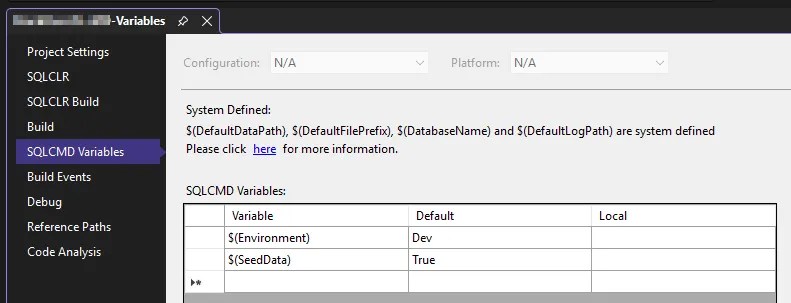
By default there will be none, but I’ve added the Environment and SeedData variables along with defaults as an example.
Now you can use these within a script in the project, for example a Post Deployment script which could contain:
/* Define environment specific config */
UPDATE dbo.Config
SET LoginTimeout = CASE '$(Environment)'
    WHEN 'Dev' THEN 1200
    WHEN 'Test' THEN 120
    ELSE 60
    END;

/* Initial table seeding */
IF ('$(SeedData)' = 'True')
BEGIN

    DECLARE @SeedAccounts TABLE (
        ...
    );

    /* Upsert / MERGE default data */
    INSERT INTO dbo.Accounts
    ...

END
Now we can publish one project with different behaviour across environments.
Where to use them
SQLCMD variables let us make deployments more dynamic, but in a consistent way. Having them as a core part of a project allows us to have a standard schema across all deployments, but with environment specific elements captured within the same repository.
Below are typical use cases where SQLCMD variables stand out:
- Add dummy accounts for clients or users, typical for lower environments and smoke testing
- Set up data scenarios to support edge cases or automated testing processes
- Enable specific environment configuration such as debug flags
Essentially any data which is specific to an environment (think configuration), or used to prepare an environment (think defaults or dummy data) are exactly where SQLCMD variables shine. They shouldn’t be used for schema changes (like environment-specific indexes) as these would fight against the schema deployment in the project.
Using a large number of flags in a project can make deployments complicated and messy. Define a deliberate set of variables which encompass all environments or configuration combinations, and keep them as distilled as possible.
Once you know what the variables are and you’ve got your list defined, where to use them is the easiest part. But that’s not the end of the road, we need to deploy with them.
Deploying with variables
This is where it all comes together – creating, using, and now publishing with variables.
In the Visual Studio (SSDT) implementation, they’re front and centre in the Publish dialog:
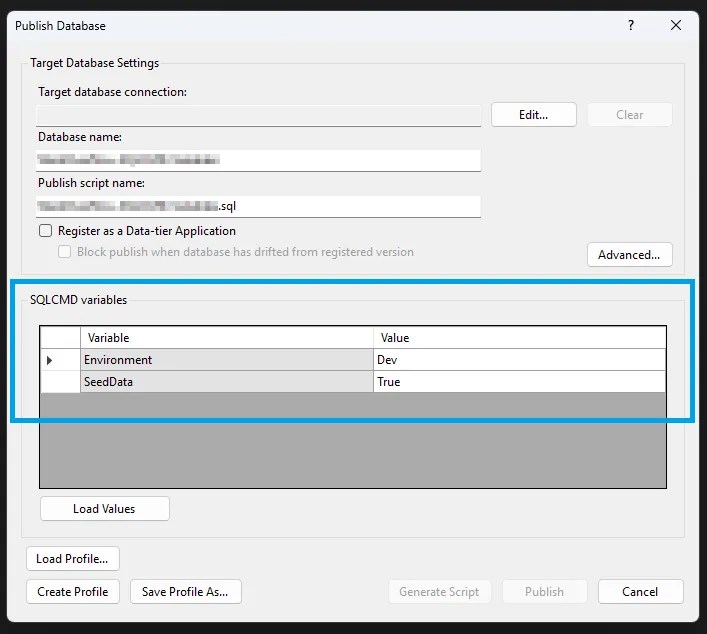
Here I’ve already selected Load Variables to populate the defaults, but you can customise them as you need depending on your environment. Set your connection and options, and Generate Script or Publish.
But we can get smarter 🧠
As I mentioned recently, there are plenty of Advanced options when publishing. Combining that with connection to the relevant target and now the variables on top – that’s a lot of configuration.
Thankfully you’ll see the Profile options in the bottom left of the screen. With these we can Create and Save the current publish settings into a profile. This includes the target database, Advanced settings, and – you guessed it – our SQLCMD variable values.
When you Create or Save a profile it’ll be added to your solution as an XML file. You can have as many as you need:
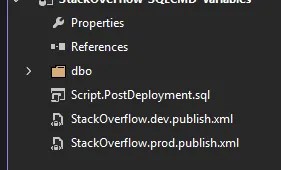
The ability to save these profiles into the project greatly reduces friction with deployments across environments:
- You can diff XML files to ensure environment deployments only differ where expected
- Your deployments are easily repeatable with different configurations
- Deployment options are source controlled and changes are traceable
Once added to the project, opening these XML files within Visual Studio will launch the Publish dialog with all the saved configuration automatically applied. Happy deployments! 🎉
As mentioned above, this is the view from Visual Studio. Publish profiles and the GUI shown here isn’t yet available in SSMS. As we saw with some features last week, this is already available in VS Code, so I’d expect it to arrive sooner or later into SSMS.
If you’re not using Visual Studio for deployment, or want to use command line for CI/CD publishing with these variables, you can refer to publish parameters for SqlPackage for that method.
Wrap up
As we’ve seen recently, Database Projects are amazing, even if SSMS isn’t quite there (yet). Here we’ve shown how to elevate them further with smarter deployments through the use of SQLCMD variables.
SQLCMD isn’t new, but using it within Database Projects provides a way to make typically static deployments more dynamic and customisable. They’re perfectly suited to tailor the default data across different environments whilst capturing that configuration in a single repository and publish profiles.
SQLCMD variables are the difference between deploying a schema and deploying a solution – one project, multiple profiles, every environment covered.


2 replies on “Smarter Database Project Deployments with SQLCMD Variables”
[…] Andy Brownsword changes a variable: […]
[…] The variable is used in scripts (as per the example) to reference the database, and it can be set as part of the publish profile, so it can differ between environments – if CrmDb becomes CrmDbDev for […]