When we initially looked at Dynamic Data Masking we used the default function to mask our data so it showed xxxx. With the masking however there are a few functions available to allow us to mask data in particular ways which may be of use depending on our use case.
We’ll create a record to apply these masks against so we can see how each of them operates:
CREATE TABLE #DataMasking (
	FullName VARCHAR(50),
	Email VARCHAR(50),
	Age INT,
	PhoneNumber VARCHAR(50)
);

INSERT INTO #DataMasking (
	FullName,
	Email,
	Age,
	PhoneNumber
)
SELECT 'Andy Brownsword',
	'andyb@email.net',
	35,
	'07777123456';
The default function
As we saw previously, the default function will take the value entered and change it to a generic default value. Depending on the data type of the field this will change however. Below are the defaults that will be used:
- Text field such as
VARCHARandNVARCHARwill change to show up to 4xs – if the contents of the field is shorter it’ll show the same number of characters, if its larger than 4 it’ll remain atxxxx - For numeric values such as
INTorDECIMALor binary data types the default will be0 - For date or time data types it’ll use the relevant portion of the date/time for midnight at the start of 1900, i.e.
1900-01-01 00:00:00
In our example we’ll use this function to mask out the name field so we’ll add this onto the table definition as follows:
ALTER TABLE #DataMasking
ALTER COLUMN FullName
ADD MASKED WITH (
	FUNCTION='default()'
);
The email function
Another common type of data we may want to mask may be people’s / customer’s / contact’s email addresses. There’s a function specifically built for this and it’ll mask all but the first character of the address.
The masked value will look like aXXX@XXXX.com where the email address starts with the letter ‘a’. The length of the email and the .com suffix are all irrelevant here as that’s a fixed string added after the first character and regardless of the suffix of the domain.
In our example we’ll use this to mask our email address:
ALTER TABLE #DataMasking
ALTER COLUMN Email
ADD MASKED WITH (
	FUNCTION='email()'
);
The random function
When masking numeric data types we have a slightly different function available to us. Rather than a static mask like the ones above which will always return the same values we also have the random function which can return a numeric value between a specific range.
As we can define a range for this the definition also differs to the two previous examples as we can specify the start and end of the range from which the result will be randomised. This is done as parameters for the function.
The range can be used for integer or decimal values and the results from the random number will be of the appropriate type, so if we mask a decimal which has its scale set as 3 then the randomisation will extend to all 3 decimal places.
The last difference to the prior examples is that the result is randomised each time the data is queried, so the value shown in the field can be different each time.
In our example we’ve got our numeric field Age which we can apply this function against:
ALTER TABLE #DataMasking
ALTER COLUMN Age
ADD MASKED WITH (
	FUNCTION='random(20, 60)'
);
The partial function
This last function gives us the most control over the masking. As with the `random` function above we’ll have parameters which will let us customise the results, however this will provide fixed results similar to `default` and `email` functions.
The partial function allows us to choose the number of characters to present at the start of the field, the number to show at the end, and then the text we’d like to pad out the middle with. These are all fixed so if we choose to reveal 2 characters at the start and end and then pad the middle with xxxx then our result would always be 8 characters even if the original string was much larger.
This could however be advantageous when we look at strings of identical sizes where we’d like to obfuscate a portion of their contents. In our example this lends itself well to our UK mobile number (which is typically 11 digits):
ALTER TABLE #DataMasking
ALTER COLUMN PhoneNumber
ADD MASKED WITH (
	FUNCTION='partial(2, "xxxxx", 3)'
);
Wrap up
With all of those functions in place it feels right to wrap up by looking at the results we’ll see from them. As with the previous post we’ll use EXECUTE AS look at the data both without and then with the masking applied to see the functions in action:
SELECT * FROM #DataMasking;

EXECUTE AS USER='Dummy';

SELECT * FROM #DataMasking;

REVERT;
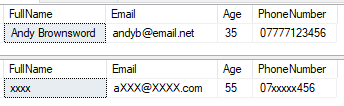
Having these multiple functions available to us can help us to provide appropriate masking to our data whilst still providing some freedom to present the data in a way that at least appears to match the data that folks would expect to find in those fields.
 Andy Brownsword