Sometimes when you’re querying a set of data for the first time it can be tricky to understand the results you see. What are the data types? How is the data keyed? Are there any constraints in place? Does the table have foreign keys relating to other tables?
So you might then end up scanning for the table in SQL Server Management Studio (SSMS), expanding all the nodes, opening up indexes and foreign keys to where everything relates to – and it’s not quick to get an understanding of how that schema looks.
Well that was until this week when I was shown a little Management Studio hack which I wasn’t aware of after spending years with the tool!
The mighty Alt + F1
It turns out that in Management Studio you can highlight an object name in your query, hit Alt + F1 and it’ll show you schema details for the object. This will include the field definitions, indexes, constraints and foreign keys within the table.
Let’s say we want to write a query against a new table – in this case I’ll be using the AdventureWorks2019 database. We might start off with a simple query to look at the data like this:
USE AdventureWorks2019

SELECT TOP 100 *
FROM Person.Person;
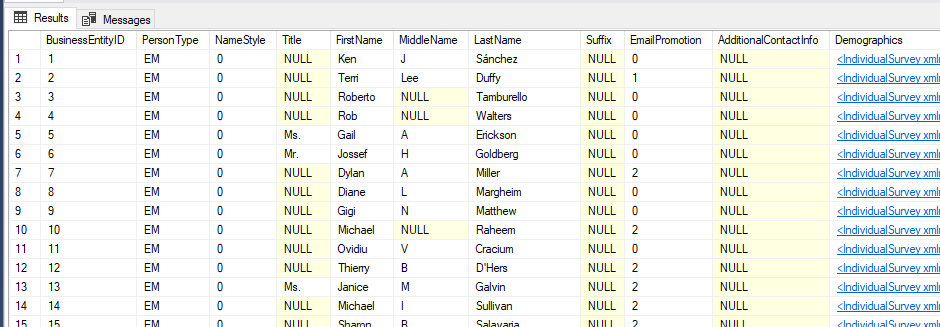
We’ve got a wall of data facing us and we can only make initial assumptions about the data. The MiddleName appears to be a single character initial, the NameStyle doesn’t give us any indication, and we’ve got no idea about the lengths of those strings or what all those NULL values may be.
Instead of browsing through the nodes in Management Studio let’s highlight the table as below to make sure we’ve got the schema and table name selected:
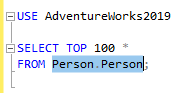
With that we’ll press Alt + F1 and behold the results:

You’ll see we’ve got multiple result sets which contain different sets of very relevant information for us. With all those results we can start to find some of those answers we were after. We can see that the MiddleName field actually has a length of 100 characters and that the NameStyle is in fact a custom data type, and we now know a little more about those fields which were full of NULL values.
In addition to those we’ve also information for the indexes on the table including the keys and clustering, there are constraints and their definition, foreign keys implemented on that table, and the foreign keys on other tables which reference this one.
How does it work
Under the hood this shortcut is executing the system stored procedure sp_help against the object which we’ve selected, it’s as straight forward as that. We could have alternatively just ran the below to get exactly the same results:
sp_help @objname = 'Person.Person';
If you want further details on the procedure, the result sets returned and the different results returned depending on the type of object passed in you can find those in the online documentation.
Wrap up
When I was shown this little tip I couldn’t believe how long I’d been using Management Studio for without having any idea about the functionality. It felt like a little bit of a game changer in the way I’ll look at reviewing new data sets in the future so I thought it would be a nice short post as we get to winding down for the holidays.
Hopefully there are others out there who didn’t know this gem existed and it’ll make their lives a little easier. I’ll look forward to finding and sharing more of these in the future.
 Andy Brownsword