
A few weeks back we looked at options for storing multiple boolean flag values in a table. One of the options we considered was the use of a Bit Mask where we packed multiple flags into a single field.
When we have individual fields within a table, using and manipulating those is straightforward. However when we’ve got multiple pieces of data condensed into a single field this gets a little more complicated.
Here we’re going to look at an example of how to build the fields, and once we have them how we can use bitwise operators to provide options for filtering and manipulating those values.
Bit mask values
For our example we’re going to create a small mask for customer accounts at a store. Below are the attributes which we’ll be storing:
- IsActive – if an account is active to be used for a sale
- HasBalance – if there is a balance available to spend
- HasSpendLimit – if a spending limit is in place on the account
- DiscountedPricing – customer has access to reduced prices on some lines
The way we build up our mask is by attributing a value to each of these. The values are all 2 raised to a power (starting at 2^0). In simple terms the first flag has a value of 1 and each subsequent value is double the previous one. Our values will be:
- IsActive – 1
- HasBalance – 2
- HasSpendLimit – 4
- DiscountedPricing – 8
With these being numeric values and having a small number for our use case we’ll be storing these in a TINYINT field. In SQL the flags would look as follows:
DECLARE
	@IsActive TINYINT = 1,
	@HasBalance TINYINT = 2,
	@HasSpendLimit TINYINT = 4,
	@DiscountedPricing TINYINT = 8;
These values are specific as they correlate to a specific bit within our integer value. What this means for us is that any combination of the flags will produce a unique value so we can understand how it’s constructed.
For example to indicate an Active account which has a Balance available we can store the value 3. Similarly for an inactive account which has access to Discounted Pricing we’d simply use the value 8.
Sample data
With our values in place we want to create some sample data we can query against. Below is table we’ll refer back to which shows every combination of the above flags:
DECLARE @Bitflags TABLE (
	Flag TINYINT,
	Details VARCHAR(100)
);

INSERT INTO @Bitflags (Flag, Details)
VALUES (1, 'IsActive'),
	(2, 'HasBalance'),
	(3, 'IsActive,HasBalance'),
	(4, 'HasSpendLimit'),
	(5, 'IsActive,HasSpendLimit'),
	(6, 'HasBalance,HasSpendLimit'),
	(7, 'IsActive,HasBalance,HasSpendLimit'),
	(8, 'DiscountedPricing'),
	(9, 'IsActive,DiscountedPricing'),
	(10, 'HasBalance,DiscountedPricing'),
	(11, 'IsActive,HasBalance,DiscountedPricing'),
	(12, 'HasSpendLimit,DiscountedPricing'),
	(13, 'IsActive,HasSpendLimit,DiscountedPricing'),
	(14, 'HasBalance,HasSpendLimit,DiscountedPricing'),
	(15, 'IsActive,HasBalance,HasSpendLimit,DiscountedPricing');
Now it’s time to start using this data. The way we use and access these in SQL Server is using bitwise operators. Rather than reviewing the operators we’ll look at the functions they can support.
Partial search
We’ll start off with a look at a partial search example. You could think of this as a regular WHERE clause where we’re only specifying values we want to filter.
To perform this check we use a logical AND operator which will provide a result where the flag is set on both sides. As we’re only filtering on one value then the result will either be that value – if the flag is set – or no value. The symbol for the AND operator in SQL is the & (ampersand).
Let’s retrieve all of the values from our sample data where the Active flag is set.
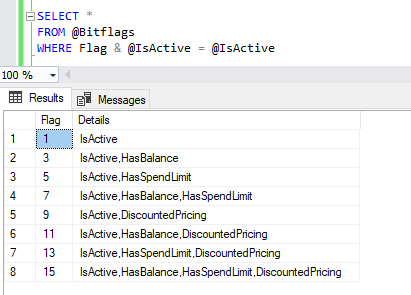
We can also search on multiple flags at the same time. To help us combine the values we’ll use the OR operator which will set the flags where it’s set in one or the other mask. The OR operator can be used in SQL with the | (pipe) symbol.
Let’s look at another example where we search for entries which have a Balance and Discounted Pricing available:
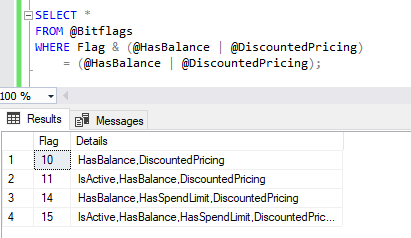
We can see that all of the flags returned have both of the flags set (as well as others in some cases) as expected.
Exact search
We can go further than partial searches and perform exact searches. This is where we want every value to match within the mask.
To perform this we use the XOR (exclusive OR) operator. This is done in SQL with the ^ (hat?) symbol. By applying a mask using XOR we’ll receive a zero value as the result if the masks match exactly, otherwise they’ll return a non-zero value indicating where they differ.
If we wanted to find the flag value which only has the Active and Balance values set we could do it like the below:

The ability to search in this way is very powerful as we don’t need to define the value for every flag to search for, only the ones which are set. If this were a WHERE clause we’d need to define every single value.
Setting values
When we want to update a specific flag within a mask this isn’t as straightforward as setting the whole value. This is due to us wanting to change only one part but without impacting any of the other values which are already set in the mask.
We saw previously how we could combine flags when performing a partial search, and we can do the same here. We’ll again use the OR operator to help us with that.
Using the sample data we’ll perform a self join to demonstrate what the flags would change to if we were to apply the Spend Limit flag to existing values:
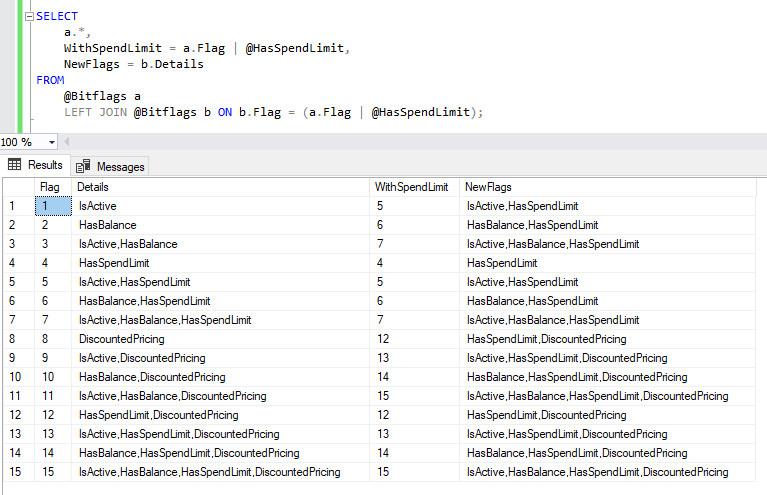
We can see that this is working as expected as flags without the Spend Limit set will change their value (e.g. 1 changes to 5) and flags with it already set won’t change (e.g. 6 stays as 6).
Resetting values
Whilst we can use the OR operator above when setting flag values, this doesn’t work for resetting values as there’s an absence of a flag we need to deal with. Resetting flags is a little tricky.
So to perform this we’re going to use a combination of two of the operators we’ve looked at above. We’ll take the AND operator like we did when searching but we’re going to be setting every flag except the one we want to reset. To perform the except we’ll reuse the XOR operator which will reset only the flag we want to change.
The way that we indicate ‘every’ flag is set is by using the maximum value for our numeric type. In this instance with a TINYINT that value is 255.
It may be easier to explain by looking at the results so let’s see it in action:

We can see with these results that the flag has been stripped from our sample data to get the new value, for example flag 15 would be reduced to 7 with the Discounted Pricing flag removed as it has the value of 8.
Wrap up
Here we’ve looked at how we can use bitwise operators to perform functions on a bit mask field within a table. As discussed previously it can be clearer to have each field presented individually within a table however the way in which we can manipulate a single flag field like in these examples brings it’s own benefits.
I’ll admit that if you’re not used to working with these flags or you’re not familiar with the underlying binary math principles this can seem like a foreign language with hieroglyphics. I’m hoping the examples have demonstrated it somewhat well.
If you want to read a little more around this area there are a couple of documents on Wikipedia which may be of use including binary arrays and bitwise operators.
This isn’t a technique I use often – partly due to the complexity with manipulation – but I feel it’s certainly got it’s place in providing more concise logic when handling a large number of flags.
So, what’s your preference, individual fields or a combined mask?
 Andy Brownsword
2 replies on “Utilising Bit Masks with Bitwise Operators”
[…] Utilising Bit Masks with Bitwise Operators […]
[…] ID > … to check privileges and add a foreign key to a Role table, or a Bit Mask referencing […]