
Last week we looked at configuring SSIS packages using package configuration. This week we’ll look at another approach for configuration: Project Configuration
Project Configuration is the standard way to configure projects. This took over from the legacy approach which we looked at last week. This method allows us to share common parameters and connections across an entire project to help managing a number of packages more efficient.
Sample project
We’ll be reusing the project from last week which has a single package we’ll configure. It has the following elements:
ImportDirectoryvariable which is the path to a directory to load some data fromFilePathvariable is an expression appending a file name to theImportDirectoryFileToLoad.csvconnection which uses theFilePathvariable to point to a filelocalhost.Blogas a database connection to load the file contents into
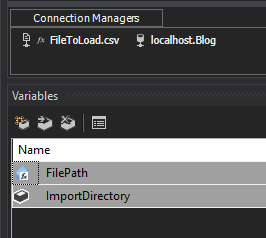
From these we want to configure:
ImportDirectoryto allow a dynamic location- Name of the file to append to the directory
localhost.Blogconnection to make it reusable
Parameterisation
The first point of call for sharing values across a project would be parameters. Even though we’re looking at project configuration, these can be defined at either a Package or Project level.
Project level parameters are available to all packages, whereas Package level ones are only available to the specific package where they’re configured. The combination of these gives us a few options for flexibility:
- Configure at project level – beneficial where parameters can be used across related packages regardless of the size of the project, such as a root directory location or shared API key
- Configure at the package level – can be useful for packages which need configuration but that isn’t relevant for the whole project, for example file name filter or email distribution
- Utilise a combination – particularly in larger solutions which can have a large number of parameters, so you can get the benefits of both
In this instance I want to configure our ImportDirectory to be shared across the project as we may have other files which need to be imported from there. The file name specific to this process will be configured against the package.
Project parameters
Our Project Parameters will be available to all packages in the project. They’re maintained under the Project.params node inside the project. Here we’ll be adding our Import Directory parameter:

Setting up a parameter is similar to a variable, we can provide a Name, Data Type, and Value. We have two key differences however:
Firstly we can’t use an expression for a parameter. This is why we’ll be configuring the file name as a package parameter rather than an expression which we could do with the package configuration.
We can set parameters to be Required. When set to False as above the value will be deployed with the package. If set to True then it will be deployed unconfigured and will need to be set prior to running package.
Package parameters
As the name suggests, Package Parameters are set up inside the package. They have their own tab at the top of the canvas, and these are separate to Variables. Within there we’ll add a new parameter for the file name:

Setting up the parameters at package level is consistent with the project level. The difference is the scope where the parameter is available. This will only be visible in this specific package whereas the project parameters will be available to all packages in the project.
That’s the file paths sorted out, what about the database connection?
Connections
Shared connections are again available across all packages within the project. They’re maintained in yet another location, the Connection Managers node within the project.

The wizard for these is the same as the connection manager inside a package. Once the connection is established it will be added under the node in the project:

When we go into a package we’ll also see the connection present which will indicate its shared across the project:

Word of warning: if you delete this connection from your package you’ll remove it from the entire project.
As an alternative to a shared connection we could have used a parameter to define a connection string. This would use a local connection in the package with an expression to set the connection string based on the parameter.
Updating packages
When using the package configuration we selected the elements to configure, where to store them, and we’re done. When migrating from variables to use parameters and shared configuration there’s a little more to change.
We need to review the package and reconfigure any elements which point to existing variables or connections. These will need to be replaced with our our new configuration.
For example in this package we’ll need to update the expression for the file path. The new Package and Project parameters can still be found in the expression builder so our modified expression would be:

For connections we need to change their references too, for example an Execute SQL task:

Once all configuration has been updated then the previous variables and connections can be removed. Once removed I’d recommend closing and re-opening the package as it may highlight where some references have been missed – it won’t catch everything though, don’t rely on this.
Wrap up
In this post we’ve looked at configuring Packages and Projects to use shared Parameters and Connections. By having these shared and reusing them across a whole project we can make maintenance much simpler.
We also saw how we have flexibility with the approach depending on our preference. We could use Project or Package level parameters depending on the scope for the value. We could also use a shared connection or parameterised connection string too.
Primarily I prefer to aim for Project level parameters and connections so all configuration is isolated at a single level. Package level parameters may be useful across very large projects when there may be a lot of parameter bloat and naming becomes increasingly importing. At that size though it’s likely more beneficial to split the packages out into logical project groups.
There’s still plenty to look at with configuration and how we go about publishing or managing that on a live deployment, so we’ll see where we take this next time.
 Andy Brownsword
4 replies on “Building SSIS Project Configuration”
[…] Andy Brownsword shows us the brand new (well, okay, 12 years old) deployment model for Integration S…: […]
[…] week we looked at project parameters in SSIS to help us configure our projects. This can help us to tailor the project to the package its […]
[…] we’re still going with configuration after looking at package configuration, project configuration, Visual Studio configurations, and SSIS environments. But here we are. Maybe its time for […]
[…] With bespoke flows and precedence constraints littered across packages they become unwieldy. Also, there’s no guarantee the next developer will maintain and extend them consistently. This approach gives us a template which needs no modification between packages if you’re sharing connections via project configuration. […]