
Configuring SSIS projects or packages can necessitate parametering information which may include sensitive values such as authentication details. Parameters are stored as plain text in the database by default. We’ll demonstrate how to protect these values using Sensitive parameters.
The problem
With a SSIS project deployed, our parameters are stored in plain text in the parameter table. Also when the package is executed the parameters will be recorded in the execution parameter details:
SELECT *
FROM internal.object_parameters
WHERE object_type = 20;		/* Project Parameter */

SELECT *
FROM internal.execution_parameter_values
WHERE object_type = 20;		/* Project Parameter */

This is not ideal. Let’s see how sensitive parameters help.
Sensitive parameters
As you may have spotted in previous posts around configuration as well as the screenshot above, there is a Sensitive flag against parameters. Toggling this will encrypt the value within the project by default:

If the project is redeployed and we head back to the parameter table we’ll have a different result:

We now have no visibility of the value; the design_default_value field is empty. The value will initially be populated based on what was set when we deployed but is not displayed to snoopers.
If we configure a new value within Integration Services it’ll populate the sensitive_default_value field with an encrypted copy of the value rather than being visible in plain text too.
For the most part that’s all there is to it. You can use the parameter just like you would to set other values or as part of expressions.
That isn’t the whole story. There are a couple of specific areas where we’ll see different behaviors to regular variables.
Script tasks
Sensitive parameters are secured in Script Task components too. If we used them the same way as a regular parameter the task would thrown an exception when trying to read the Value property directly.
There is a specific method against a Variable to allow us to access these values. We need to replace use of the Value property and instead use the function GetSensitiveValue.
For example to pop up our API key in a dialog box:
var ApiKey = Dts.Variables["$Project::APIKey"].GetSensitiveValue().ToString();
MessageBox.Show($"API Key: {ApiKey}");
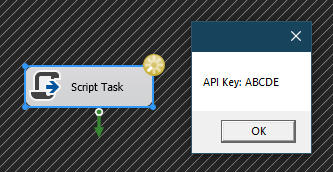
When updating existing configuration to be sensitive it’s important to check for Script Task components which may use the parameters. This issue won’t be flagged as a warning or on the build of the package.
Sharing configuration
Marking the parameters as sensitive doesn’t only protect the parameters for projects which are deployed. This also helps to secure them in files which make up the Project for the code. You have some choice over how this is achieved which we’ll look at.
If you’re not a single person team then its likely someone else will need to modify your project at a later point. In that case we will want to consider the protection level for securing the keys.
The protection level can be changed within the project properties (under Common Properties). We have a few options which break down into 3 different groups:

The first of these is straightforward, none of the sensitive parameters will be saved within the project. This means that coming back to work on it the next day you’ll need to be re-entering those.
Next up we have the options to save sensitive / all data with a user key. This means they’re protected based on the last user to save the project. If you make changes one day and come back to it the next its completely transparent. Anyone else trying to load the project would see a warning when loading the project:
Warning: Failed to decrypt an encrypted XML node. Verify that the project was created by the same user. Project load will attempt to continue without the encrypted information.
The project would load however the parameter values would be empty similar to our first option. Securing sensitive data with a user key is the default option.
Finally we have the option to protect sensitive / all data through the use of a password. When setting this you’ll be asked to enter a password. Once set you will be prompted with a password when opening the project in the future, regardless of who that may be:

Finally, it should be mentioned that when changing the protection level we’ll get the warning below. Each package will need to be updated to align to the project configuration for consistency:

Wrap up
In this post we’ve looked at how to protect data within our SSIS projects using Sensitive parameters, and how they help secure these details.
Whilst setting them is simple we need to also consider if changes are needed to existing code such as the Script Task we demonstrated. We also looked at how source code will be protected and the options which we have for achieving that when sharing code.
There isn’t a great deal of overhead to use sensitive parameters so they’re low friction to adopt and can provide crucial protection for information which is sensitive within a business.
Yea, I can’t believe we’re still going with configuration after looking at package configuration, project configuration, Visual Studio configurations, and SSIS environments. But here we are. Maybe its time for a change. See you next week!
 Andy Brownsword
One reply on “Securing SSIS Configuration with Sensitive Parameters”
[…] Andy Brownsword doesn’t just leave passwords in plaintext: […]