
Migrating to the cloud can be disruptive to existing processes. Moving storage to Azure isn’t a simple configuration change for SSIS packages.
SSIS doesn’t have native connections for Azure. That doesn’t mean we need to completely re-engineer the process or change technology though.
How can we take the simple package below and move to using Azure storage?
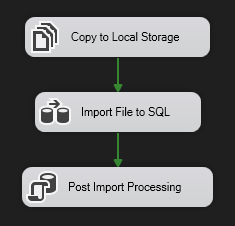
We can utilise our existing tooling and only change a single component, thanks to the Azure Feature Pack for Integration Services.
First up, get that installed, and lets jump in to see how to modify the package.
Connecting
Unlike dealing with local or network storage, we need to establish a connection to the storage account, like we would for a database.
With the feature pack installed we can create an Azure Storage connection. We’ve got a few options for the type of service and authentication to use:

Pick what you need for your storage, and give it a test.
If you choose the Storage Access Signature (SAS) Token approach you’ll also have the ability to test connection to the service, a container, and even a specific blob. Handy.
Downloading
Once we’ve got a connection we can grab some files. The feature pack includes an Azure Blob Download Task component which can retrieve blobs based on a filter.
Add the component onto the canvas and explore the options:
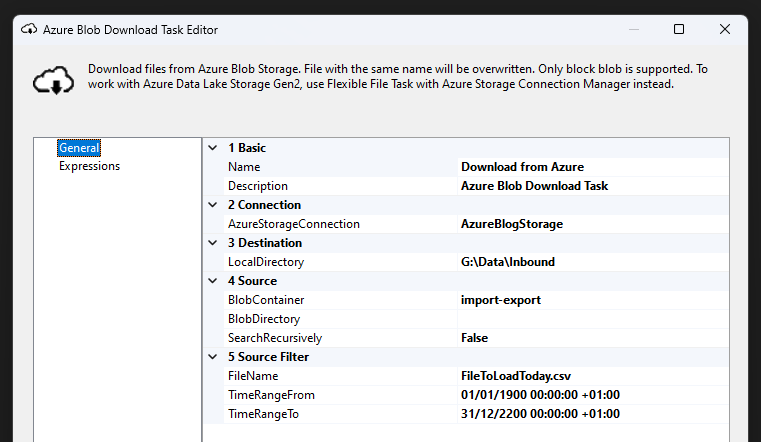
We select the connection we created above (2). We then define the container and directory within the storage account where the files will be located (4). The file list can be filtered based on wildcards and date ranges (5).
Whatever files are retrieved by the filter will be deposited into our local directory (3) with their original names.
And that’s all we need.
The download component slots in where we previous had a local file copy, and we can continue into the data flow to load the file:

Wrap up
In this post we’ve looked at how we can replace a single component in our package to support an Azure storage migration. SSIS isn’t just on premise.
All we need is a bit of help from the Feature Pack to add the Azure components. We need to configure a connection and then set up the download task to grab the files we want.
There’s also an Upload task in the feature pack if your data needs to head in the opposite direction.
Next week we’ll come back to fix an issue we might see when connecting to Azure storage due to the impeding demise of TLS 1.0 and 1.1 support from Azure Blob Storage.
 Andy Brownsword
3 replies on “Connecting SSIS Packages to Azure Storage”
[…] Andy Brownsword makes a connection: […]
[…] week we looked at using the Azure Feature Pack for SSIS to interface with Azure Storage. Today we’re going to solve a couple of the common issues […]
[…] may associate consuming data from Azure Storage with tools like Data Factory or even SSIS as we saw recently. We don’t always need the middle man […]