
When constructing or investigating a SSIS package we can run into a variety of issues. To help resolve there are various techniques which can be used to troubleshoot the package.
Whilst we have the Progress tab for the package to tell us what’s happened during execution, it’s usually more effective to debug packages in flight. Below we’ll look at a few ways we can achieve this:
Breakpoints
Breakpoints are used to halt the flow of the package. This can be to investigate a specific state between tasks, for example review a file before it’s imported, or the state of data in a table before the next task runs.
A breakpoint is set against a task and can be selected from the ‘Edit Breakpoints’ context menu, for example:
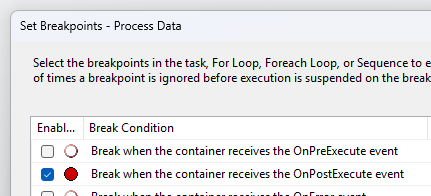
With the breakpoint enabled, the package will run to the specified point and halt. The arrow on the breakpoint indicates where the package is currently waiting to be resumed from:
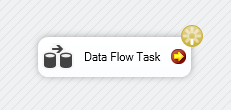
In this state, no further work will be completed until the package resumes using the usual ‘Start’ option (which will be renamed to ‘Continue’).
Breakpoints by default will occur each time the task executes. However if we’re working with loops this could be excessive. When setting breakpoints there are options to only break based on the number of hits:
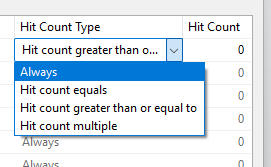
These options could be useful if you know that its only a specific iteration which you want to investigate and don’t need to keep resuming the package after all preceding iterations.
Whilst breakpoints can be useful to investigate the state of external data – such as within a database – we’ll need to check the state within the package too. For that we’ll use the Local and Watch panes.
Locals / Watch panes
The Locals and Watch panes can be used to investigate properties for the package during the execution. Coupled with the Breakpoints above we can review state as the package progresses.
When a breakpoint is hit we can look at the Locals pane to see the current state. This shows properties for the execution along with Variables and their values. This contains both system and user defined variables so can be a long list:

Rather than searching through those you can key in specific items to the Watch pane to keep the important items in one place:
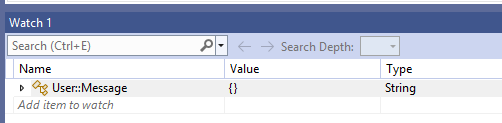
Another benefit for both the Locals and Watch panes is that the items which have been modified are highlighted so its even clearer what’s changed during execution:
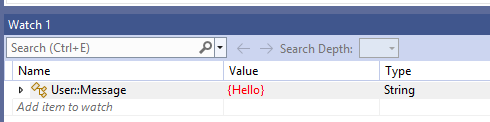
Note that if you’ve closed these panes, they can be restored from the Debug > Windows menu.
We can now stop the a package and check the state as it progresses, but what about when data is flowing through and we want to peek inside? For that we use the Data Viewer.
Data Viewer
The data viewer is exactly what it sounds like – a view of the data passing through a data flow. This allows you to step through and review the contents of the buffer.
To enable the data viewer within the flow, select ‘Enable Data Viewer’ from the context menu of a connector. When enabled you’ll see a magnifying glass symbol on the connector:
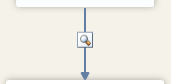
When you run the flow now it will pause after the first batch of data has made it through to the viewer. At the same time a data viewer will pop up presenting the contents of the buffer:
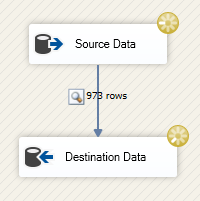

This really helps identifying problem records since you can review the details within Visual Studio or use Copy Data to take that into a tool of your choice.
From the data viewer window you can us the ‘play’ button to move onto the next batch of records. You can also temporarily detach the data viewer to let the data flow freely, and then attach the viewer later to halt the flow again and show the latest contents of the buffer.
Wrap up
In this post we’ve looked at 3 of the fundamental ways to help troubleshoot an SSIS package:
- Breakpoints are used to halt the flow of the package to investigate internal and external state
- Locals and Watch panes are used to interrogate the state within the package
- Data Viewer allows us to investigate the records passing through a Data flow
Each of these solves a specific piece of the puzzle allowing us to interrogate different parts of the process.
In combination, these 3 tools combine to provide a robust and effective toolbox to tackle most issues when creating or troubleshooting packages.
 Andy Brownsword
2 replies on “Debugging SSIS Packages”
[…] Andy Brownsword wrote code with an error in it: […]
[…] you want to dive into the data flow further, consider debugging options within Visual Studio to step through the […]