
Having persisted with Windows 11’s context menu for long enough, it’s time to concede. I find it too restrictive and slows down the muscle memory. If you yearn for that touch of Windows 10 back in your life, read on.
Reverting from the new style context menu should look something like this:

But it isn’t. Instead it’s a registry setting which looks like this:
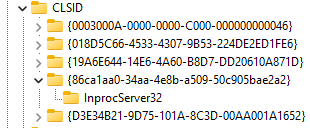
Ugh.
So for the fix.
Changing manually
If like to get your hands dirty, the registry path which needs adding is:
HKEY_CURRENT_USER\Software\Classes\CLSID{86ca1aa0-34aa-4e8b-a509-50c905bae2a2}\InprocServer32
The (Default) key in there should have a value set but left blank. If you see (value not set) you need to open the key and simply Ok to set it blank.
Next up either restart your machine, or simply restart Explorer for the change to take effect.
Changing via command prompt
If you want a simpler route and prefer the command prompt, fire away with this:
reg add "HKCU\Software\Classes\CLSID\{86ca1aa0-34aa-4e8b-a509-50c905bae2a2}\InprocServer32" /ve /f
taskkill /f /im explorer.exe & start explorer.exe
If you don’t like what you, this will revert the change:
reg delete "HKCU\Software\Classes\CLSID\{86ca1aa0-34aa-4e8b-a509-50c905bae2a2}" /f
taskkill /f /im explorer.exe & start explorer.exe
Both commands sort the key as well as stopping and restarting Explorer for you.
Changing via PowerShell
If you’re taste is more for PowerShell then drop this in to add the registry key and kill explorer:
New-Item -Path "HKCU:\Software\Classes\CLSID\{86ca1aa0-34aa-4e8b-a509-50c905bae2a2}\InprocServer32" -Value "" -Force | Out-Null
Stop-Process -Name explorer -Force
If you’ve got buyers remorse and regretting the decision, this should sort you out:
Remove-Item "HKCU:\Software\Classes\CLSID\{86ca1aa0-34aa-4e8b-a509-50c905bae2a2}" -Recurse -Force
Stop-Process -Name explorer -Force
Whilst the script doesn’t explicitly restart Explorer, this version interestingly seems to restart on its own. That might be a local thing, YMMV.
Whichever option you choose, you’ll be blessed with the good ole Windows 10 context menu:

There are plenty of tools out there which can tweak this but since its a one two-line fix I don’t see the need to go to the hassle of that. Grab whichever you prefer above and get on with your day.
 Andy Brownsword
One reply on “Reverting the Windows 11 Context Menu”
[…] Andy Brownsword – Reverting the Windows 11 Context Menu […]