
One particular performance issue with SSIS data flows can fly under the radar – spilling to disk. This isn’t clearly visible through regular debugging or execution so can go unnoticed. And it hurts.
Paging to disk is bad for performance. Disks are much slower to access than memory, so we want to keep our data away when possible.
The two main reason we’ll be spilling to disk are:
- Memory pressure on the environment
- The use of large data types (LOBs)
We’ll have a quick look at what these scenarios are, and then what options we can use to monitor for these.
Issues
Large processes running concurrently can start to mount up the memory needed for execution. If the environment isn’t scaled appropriately or there’s other processes running alongside – its not unusual to see SQL Server and SSIS to be installed side by side – there can be memory contention.
Having excessive buffers set for data flows can exhaust memory quickly too. You want to make sure those values are set appropriately.
Another particular culpit of this is the use of large data types – the infamous LOBs. Records which have large volumes of data stored in their fields – such as NVARCHAR(MAX) or TEXT – can cause paging.
These situations are uncommon and they can be specific to a particular package or data set. For that reason, we might not consider paging as the offending issues causing our packages to run slow.
But if it could be, how can we detect it?
How do we know?
There are various ways in which we can identify spilling to disk from the SSIS package. We’ll look at 3 different options below which will point us in the right direction.
PerfMon counters
Performance Monitor has a number of counters available for SSIS. These can be found under the category ‘SQLServer:SSIS Pipeline [Version]’:
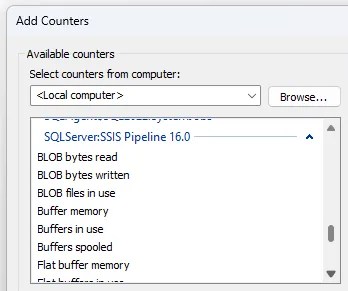
Two of them specifically are useful for the issues above. They are:
The Buffers spooled counter details ‘the number of buffers spooled to disk’. This will show when memory pressure is too great from the environment or data types and the package has had to buffer to disk.
The BLOB files in use counter details ‘the number of BLOB spooling files in use’. This is the number of temp files created when the spooling is caused specifically by by LOB values.
Using a local session we can see spikes in the relevant metric when the disk activity is occurring:

You could choose to monitor with a local session, or its very common for monitoring tools to be able to tap into the Performance Monitor metrics and alert accordingly.
Monitor temp storage
Data flows have two properties which can help to monitor files being paged to disk. We can set the directories which the paging occurs to.
The properties against the data flows are:
BLOBTempStoragePath– used for excessive LOB valuesBufferTempStoragePath– used when the package runs out of memory
The default directory for these is %USERPROFILE%\AppData\Local\Temp\. This directory can get quite busy, hence the suggestion of setting custom values.
If we set these locations and the relevant issues occurs, we’ll see the temp files being written out, for example:
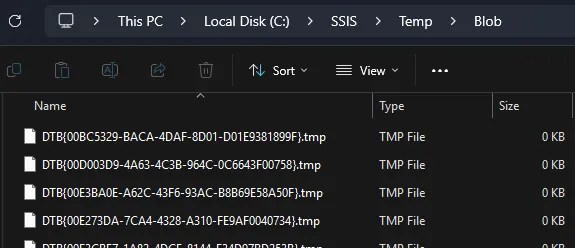
Through watching or applying monitoring to these folders we can identify paging is occurring.
Note that the location you use for these paths should be at least as fast as the default location, or you will risk slowing down your package even more if its paging to a slower disk.
SSIS logging
Logging available in SSIS can be useful to monitor the spills too. We can enable logging for specific packages and interrogate those logs to look for references to the buffers.
We can choose to enable it within the package if we have a particular requirement such as a local text file:
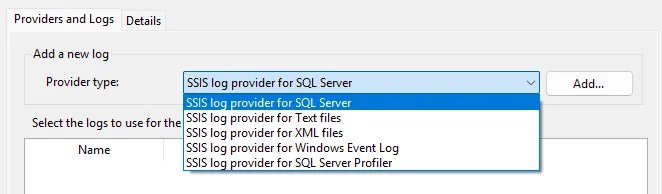
Alternatively if we’re scheduling packages with the SQL Agent we can change the logging level to Verbose which will include additional diagnostic details:
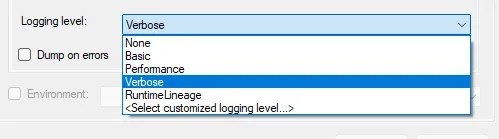
Personally neither of these logs have pinpointed memory issues for me previously. It’s worth considering logging for completeness though as they’ll also provide more details on data flow performance which might highlight other issues.
Both of these approaches will hurt performance to a degree due to the overhead of writing more logs for the package. You might need a little pain to help identify the underlying cause unfortunately.
Wrap up
In this post we’ve looked at common reasons why a SSIS data flow may spill to disk. This will hurt performance but isn’t always obvious. We’ve covered 3 ways to help identify it if you think you’re a victim.
As mentioned at the start, reading from disk is much slower than reading from memory. We want the buffers to stay in memory as much as possible, so identifying these spills can be key to unlocking performance.
Whilst there are some elements which may be out of our control such as finding source data with large data types, at least we now understand the issue and have strategies for identifying occurrences which may need addressing.
 Andy Brownsword
2 replies on “The Silent Killer of SSIS Performance: Paging to Disk”
[…] Andy Brownsword notes a major performance risk in Integration Services: […]
[…] Review data sizes to avoid spilling to disk […]