
Last week we looked at calling a Data Factory Pipeline from a Logic App. This week I thought we’d balance it out by taking a look at calling a Logic App from an Azure Data Factory (ADF) Pipeline.
When building the Logic App last week we had to create our own polling mechanism to check for completion of the pipeline. The process is much simpler in the opposite direction. I specifically want to highlight two approaches, and save some pennies whilst we’re at it.
Web activity
The simplest way to call a Logic App is with a Web activity. We take the URL from the HTTP request trigger and use that as the URL for the Web activity. Easy, right?

Well, maybe not quite so. There are a couple of challenges we need to be mindful of:
- Asynchronous execution
- Longer running apps
By default this will run an asynchronous request, similar to the pipeline last week. The Logic App will start, and then the Pipeline will move onto the next activity. It won’t wait for completion.
The reason for this is that without an explicit Response action in the Logic App, it will immediately return a HTTP 202 to indicate the response has been Accepted, and proceed asynchronously:
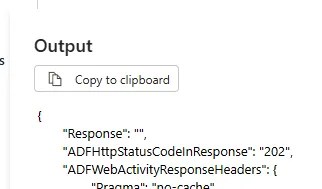
By adding a Response action into the Logic App, it shows we’re taking control of responses, and it won’t return the default 202 response. The easiest option is to add a final step in the flow, with a Response action returning Status Code 200 (OK):
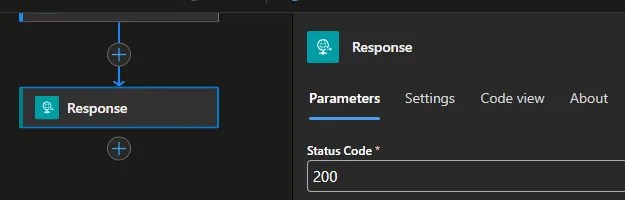
With responses being handled by the Logic App, the next challenge we can face is with longer running jobs.
Web activities need responses in a relatively small window. By default the timeout is 1 minute. Under Settings > Advanced you can change the ‘HTTP request timeout’ property, which is limited to 10 minutes.
But that’s not the only element working against us. Logic apps have time-outs on inbound requests which vary between 2-4 minutes (Consumption vs. Standard apps), so you wouldn’t be able to reach the 10 minute limit in the pipeline.
If your Logic App should easily complete its work within a couple of minutes then you can go ahead and set the timeout at a reasonable value for your implementation. If you’re running something longer than this, you’ll need another approach 👇
WebHook activity
An alternative way to call the Logic App is using a WebHook activity. The WebHook behaves similar to how we set up our Web activity above in that a request is made, and pipeline flow is halted whilst we wait for a response.
The way it works is different. With a WebHook, the pipeline calls the Logic App and provides a callback URL. Once the Logic App is complete it then needs to call that URL to notify the pipeline it’s complete. This avoids the pipeline leaving the connection open, and it can simply pause execution until the callback is made from the Logic App.
Setting this up is similar to the Web activity. Provide the URL from the Logic App, and the timeout period to wait for the callback:
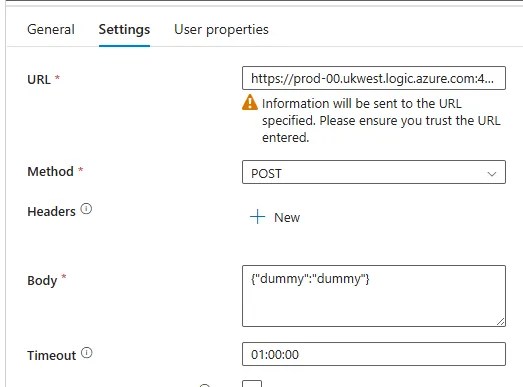
On the Logic App side we need to switch that up. Instead of completing with a Response action, we need a HTTP action to contact the callback URL provided from the Pipeline:

Due to the Web activity keeping the connection alive whilst waiting for the response – and as a result, its relatively short timeout – this approach has the flexibility to cater for Logic Apps which run much longer as the pipeline is inactive whilst waiting for the callback.
If you want to elevate the response from your Logic App, you can also report the status in the callback which is particularly helpful if you want to return specific response codes or exception details.
An eye on cost
What you’ll see from the options above is that they’re both very similar. The Logic App needs to be set up specifically to cater for the relevant approach, but there’s nothing complex there.
There’s a nuance in the way the pipeline handles these approaches:
- The pipeline is active whilst waiting for a response to the Web activity
- The pipeline is inactive when waiting for the callback
I’d argue that the callback is a cleaner approach as the connection isn’t maintained throughout. However, the more eye-catching point here is that it’s a more cost effective (cheaper) approach due to less time being billed 💰
Looking at consumption metrics, a pipeline using the Web activity consumes runtime resources whilst waiting for a response from the app:
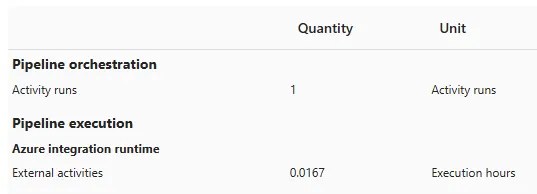
Whereas the exact same functionality using the WebHook approach needs no resources as the pipeline is paused until the callback is made:
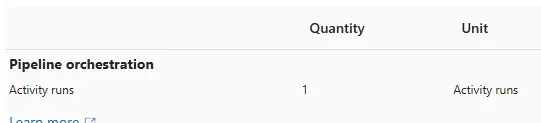
Clearly this example has minimal usage, however when dealing with long running tasks or a large volume of calls, this minor change in approach can lead to savings on your subscription.
Wrap up
In this post we’ve looked at two approaches for calling Logic Apps from data pipelines. Both approaches are very much valid and would be usable for most simple use cases, for example sending an email notification.
If your Logic App wraps up quickly, the Web activity – and restrictions which come with it – will be fine. If its running for longer than a couple of minutes or can be variable, then go for the WebHook activity to remove those limitations. It’s an all-around winner.
So, next time you see a Web activity calling a Logic App, elevate your approach by using a WebHook allowing for longer running calls, a more resilient approach, and lower costs – all bundled into one.
 Andy Brownsword
2 replies on “Calling Logic Apps from Data Factory Pipelines”
[…] Andy Brownsword flips the script: […]
[…] Use Responses in the app to return relevant status codes to the Web activity. I’ve demoed this recently […]