
Slow queries are one thing, but under heavy pressure, your SQL Servers might see failed connections or slow responses. When the server isn’t responding we want a back-door we can crack open. In SQL Server, this comes in the form of a Dedicated Administrator Connection (DAC).
In this post I want to look at what the DAC is, and briefly see how its access differs across various flavours of SQL Server.
The DAC
The Dedicated Administrator Connection (DAC) is a lesser used tool in a DBA’s toolkit, and for good reason. You don’t want your environment in a state where you need the DAC. But that day will come so here’s a quick primer.
The DAC is a special connection within SQL Server which reserves a small portion of resources that we can use as a break-glass to get access at the most critical times. Emphasis on the small portion, as this connection is only designed to run lightweight diagnostic and troubleshooting queries with a single worker thread.
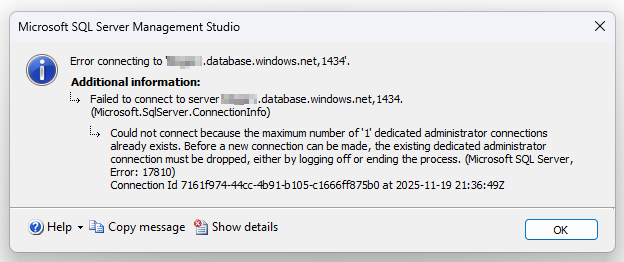
Only sysadmin members are able to connect to the DAC, and only one DAC is available to the instance for troubleshooting. For this reason you don’t want to try connecting using Object Explorer as this uses multiple connections to support features such as Intellisense. If there’s already a session connected (or you try with Object Explorer) you’ll run into this error:
The DAC is available on port 1434, so make sure that port is also available through your firewalls. When connecting you can also use the admin: prefix, for example you could choose:
localhost\sql2025,1434admin:localhost\sql2025
In short, when in trouble: grab your diagnostic queries, open a new query tab, connect just that tab, and get troubleshooting.
Before we move on, there’s one point to stress: Test your DAC. This isn’t a subject to be studying during an outage. Know your DAC, test your DAC, and be prepared.
Now let’s see how the DAC changes slightly under different platforms.
Self-hosted
Environments where we host our own SQL Server instances – either on-premises, or a cloud VM – are the most straightforward as we have full access. This is crucial as by default the DAC is only available locally from where the instance is running, so we need access to that environment to connect.
Being our own environment, that’s much easier. But it isn’t ideal if we want to troubleshoot in the heat of the moment. That’s ok though as accessing the DAC remotely is an option. The remote DAC has to be enabled through SQL Server configuration like this:
EXECUTE sp_configure 'remote admin connections', 1;
GO
RECONFIGURE;
GO
Managed instance
Next up is the Azure SQL Managed Instance. The most closely related to our self-hosted instance. Here we don’t have local access to the environment so our only option is remote access.
That remote access is only available from within the same VNET however. You’ll need a client such as a VM within the same network to access the DAC. That’s about your only option – there’s no public access available to the DAC, and you also can’t use private endpoints as that only allows traffic over the default port (1433).
Azure SQL database
Finally we get to the Azure SQL Database which actually surprised me that it has a DAC available.
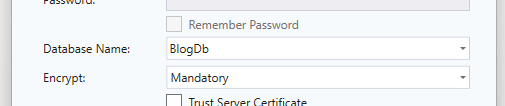
The nuance here comes from the database selection. Typically when connecting to the environment you can change the database after connection, such as the database dropdown on the SSMS toolbar. When using a DAC, you can’t change the database so you have to make sure the database is specified as part of the connection.
You can explicitly choose the database when using sqlcmd using the -d switch, or in SSMS connection dialog, simply select the relevant database:
Wrap up
In this post we’ve looked at the DAC in SQL Server which can be used as a fail-safe connection when an environment is under pressure. It’s not something that you’ll use often, but it can be a lifeline when you need it.
While we consider it a fail-safe, access to the DAC is not guaranteed. In extreme situations, it’s possible for connections to the DAC to fail. In those situations you may need to failover or resort to a restart of the environment.
Different flavours of SQL Server have their own considerations which we’ve covered on above. Get to know your DAC configuration and make sure its tested, because you don’t want to be running into any of the gotchas when you need it most.
 Andy Brownsword