
Not all pipelines in Azure have native options for sending emails. The lucky Fabric folks have an Office 365 connection ready to rock. Data Factory and Synapse don’t have email capability built-in and need another option to send messages. So for everyone who wants more emails for their inbox rules to handle (delete), we’ll build and call a Logic App.
For this example we’ll have basic email parameters – To, Subject, Body – along with an optional attachment from a storage account. Also note that I’ve left all actions with their default names – if you change them make sure to update expressions accordingly.
Build the app
We’ll start with a Request trigger which allows us to call the app via HTTP request and pass the parameters within the body. To support this, set the JSON schema for the body as below:
{
  "type": "object",
  "properties": {
    "To": { "type": "string" },
    "Subject": { "type": "string" },
    "Body": { "type": "string" },
    "AttachmentPath": { "type": "string" },
    "AttachmentName": { "type": "string" }
  },
  "required": [
    "To",
    "Subject"
  ]
}
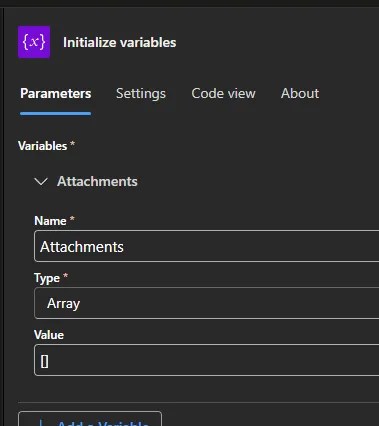
The next action is Initialize Variables. We need this to create an array of attachments as that’s what’s expected by the Outlook / Office connectors. Give it a name (Attachments in this example), set as an Array, and a default value of an empty array:
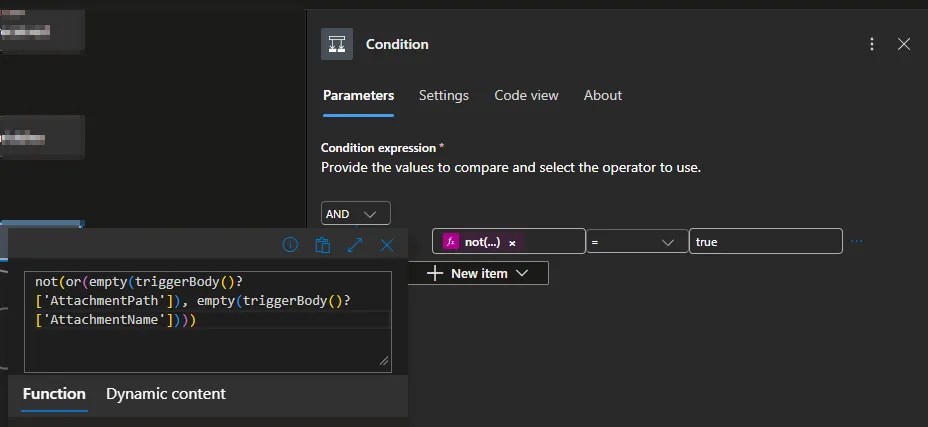
We’ll then add a Condition to check if the optional attachment parameters are populated. This lets us skip building the attachment array if the parameters aren’t populated. The condition below checks that both fields are populated:
and(
  not(empty(triggerBody()?['AttachmentPath'])),
  not(empty(triggerBody()?['AttachmentName']))
)
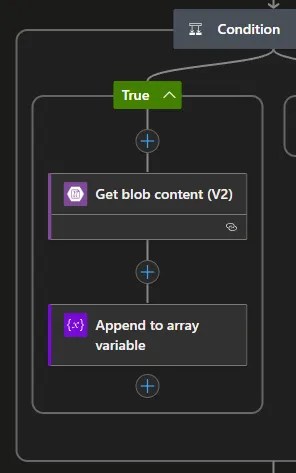
Under the True condition, we want to read our attachment from the storage account and build the attachment array. Use a Get Blob Content action to connect to your storage account and set the blob path based on the request (triggerBody()?['AttachmentPath']).
To build the Attachments array, use the ‘Append to array variable’ action against the variable we defined earlier. For the value we want a custom object using the name from the request. For the content, the Outlook connector only accepts base64 content, so we need to convert our file content:
{
    "Name": "@{triggerBody()?['AttachmentName']}",
    "ContentBytes": "@{base64(body('Get_blob_content_(V2)'))}"
}
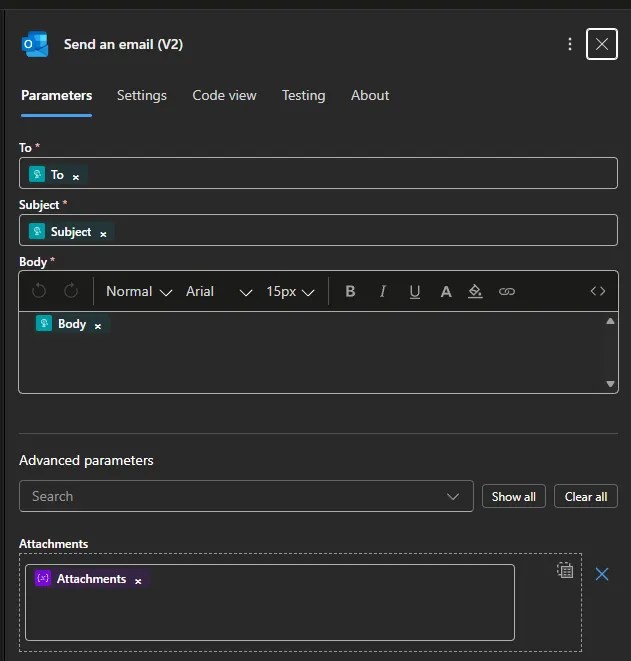
Finally, add a Send an Email action outside of the Condition to do the deed. We simply map the parameters from the request plus our attachments. Note: for the attachments hit the T icon to switch to manual input for the array:
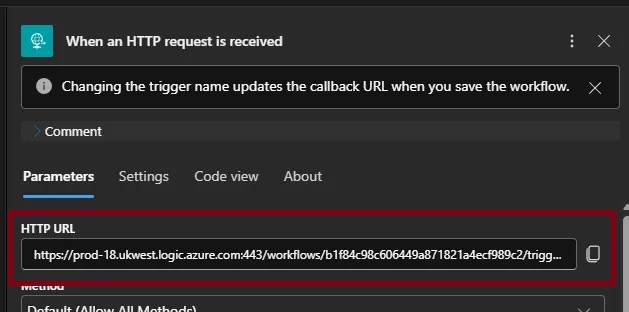
This is a minimal implementation to demonstrate, but that’s all we need on this end. Next we need to call it from the pipeline. Before we do that though, remember to save your app which generates a Request URL in the trigger. Don’t forget to grab this before we head into the pipeline:
Calling from a pipeline
Sending the email from the pipeline is as simple as using a Web activity and pointing it to our URL and feeding it some parameters. Your payload will look something like this:
{
    "To": "your.email@somewhere.net",
    "Subject": "Pipeline Complete",
    "Body": "Pipeline completed, report attached",
    "AttachmentPath": "output/summary.csv",
    "AttachmentName": "Pipeline Summary.csv"
}
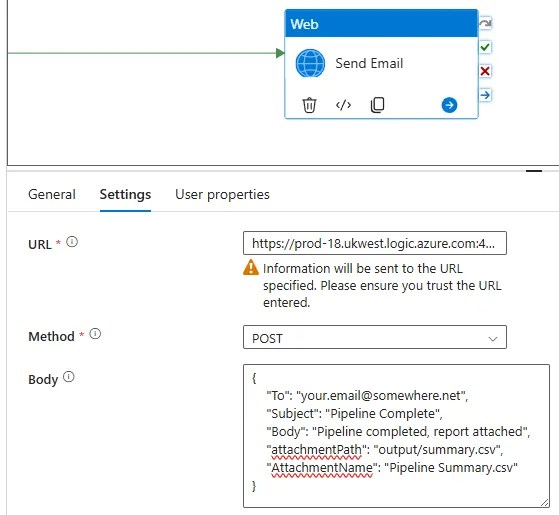
As far as a basic implementation goes, that should get you moving with sending emails. This would work the same for both Data Factory and Synapse pipelines. If you want to take it further, read on.
Next steps
So that’s the basics covered, but you likely won’t want to stop there if this is something you’ll be reusing. So let’s cover off your next steps to build this into a solid email solution:
- Add a Scope to encapsulate the logic and use success / failure conditions to react appropriately
- Use Responses in the app to return relevant status codes to the Web activity. I’ve demoed this recently
- Alternatively, use a WebHook activity to call the app (again, covered recently) – which is also a cheaper option
- Include additional parameters, for example importance, or accept an array of multiple attachments
- If you’re reproducing the same emails repeatedly, use a template approach with parameters to dynamically populate templates
- Build the payload in the pipeline to make the content more dynamic, such as including record counts
Wrap up
In this post we’ve built a small Logic App to get started sending emails from your Data Factory or Synapse pipelines. They aren’t available out of the box, but they’re easy to build and extremely useful in practice. By providing a payload to the Logic App with configurable values this is a flexible solution wherever it’s needed.
Whilst a native Outlook / O365 connector is available in the shiny new world of Fabric, this is still a missing piece in the Data Factory and Synapse worlds. This small app neatly fills that Outlook-sized gap in your pipelines.
 Andy Brownsword
2 replies on “Sending Emails from Data Factory Pipelines”
[…] Andy Brownsword glues together a few resources: […]
[…] things go wrong – and the de facto response is to send an email. We’ve looked at sending emails from pipelines before, but at scale they can become noise and are easy to […]