
If you’ve tried to get header rows to repeat or scroll as you move through your paginated reports, you may have felt the frustration of getting them working correctly. Whether it’s Reporting Services, Power BI, or Fabric, the flavour doesn’t matter.
The properties on the tablix should provide the functionality, but they’re not reliable. In this post we’ll look at how to achieve the repetition and scrolling behaviour that will work consistently.
Headers
When creating a new table, it’ll contain a header row which sits outside the group of records:

When we have a volume of records which requires scrolling and paging, common requirements are to have the header follow the records and persist across multiple pages. That should be simple settings via the Tablix Properties dialog:

The thing with these is that they don’t work consistently. These settings are supposed to tell the table how to behave, but they don’t cascade to rows or columns directly which can leave them feeling flaky as they will only work sometimes.
Even worse, if you find yourself accidentally removing and trying to recreate a header row, these settings are as good as useless.
Thankfully we can achieve the same results more robustly.
Advanced grouping
The key to our success is the Grouping pane. On this we can select the dropdown and enable Advanced Mode:

In addition to any grouped rows and columns, this now gives visibility of static rows and columns. These are rows or columns which are outside of our grouping. Our header row is the sole (Static) row group we can see above.
Like other elements of a report, these static groups have their own set of properties. This is where we find the options we need:
FixedDatakeeps the group visible as the page scrollsRepeatOnNewPagewill show that group on each page where the tablix displays
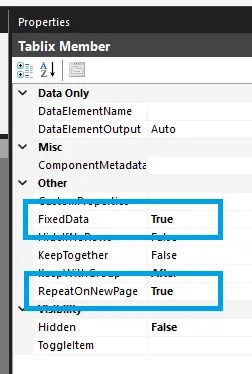
Both fields can be enabled independently depending on the functionality needed. In this case with both enabled, this combination will ensure the header row is shown wherever the tablix is showing records.
These mirror the expected functionality of the two checkboxes from the screenshot above. Applying the settings against the static row group instead of the tablix will ensure they work as expected and persist when making other changes to the tablix.
Wrap up
Dealing with header rows in paginated report tables can be a headache when they don’t act like we expect. By not putting our faith in the flaky checkboxes and being intentional with our actions, we can make sure they behave as expected.
A header row is simply a static row in the table which we intentionally make into a header. In this post we’ve shown the options available through the Advanced Mode of the Grouping pane and how it unlocks these options for us.
As the poem goes:
If you can keep your head when all about you are losing theirs…
Rudyard Kipling, If
And now, you won’t be the one losing your head(er).
 Andy Brownsword
One reply on “Intentional Header Behaviour in Paginated Reports”
[…] Andy Brownsword just wnats things to line up correctly: […]