
SSIS packages provide great flexibility for integration between systems, but when they go wrong you can end up digging through logs or reports because every package logs differently. A standarised framework for tracking failures can drastically cut down troubleshooting time.
I reminisced recently about old code, I said “it’s not enough to make it work correctly. It needs to fail correctly too”. So in this post we’ll demonstrate a simple way to consistently track errors and failures in packages to help make troubleshooting much easier.
Event handlers
Adding failure flows into a package is time consuming and leaves us working with a bloated package. Instead we’ll use Event Handlers.
If you haven’t used them before, Event Handlers respond to events which occur as the package executes – for example warnings, errors, task completion.
A handler has a separate surface where we can add tasks to create reactive logic. These sit behind the package and respond to events without interfering with the main package flow so they’re not intrusive.
Handlers can be defined against any executable within the package, or they can be set at a package level to capture events raised by any tasks. This makes them ideal for tracking events like failures.
Setup
We don’t need much to get set up. Firstly a table to log the details. This could be specific to a particular solution / set of packages, or in a centralised database for all SSIS packages:
CREATE TABLE dbo.FailureLog (
    FailureLogId BIGINT IDENTITY(1,1) PRIMARY KEY,
    PackageName NVARCHAR(260) NOT NULL,
    PackageID UNIQUEIDENTIFIER NOT NULL,
    ExecutionInstanceGUID UNIQUEIDENTIFIER NOT NULL,
    EventType NVARCHAR(100) NOT NULL,
    EventTime DATETIME NOT NULL DEFAULT GETDATE(),
    SourceName NVARCHAR(260) NOT NULL,
    SourceID UNIQUEIDENTIFIER NOT NULL,
    ErrorCode INT NULL,
    ErrorDescription NVARCHAR(4000) NULL
);
We also want to create a procedure to write to this table:
CREATE OR ALTER PROCEDURE dbo.LogSSISFailure (
    @PackageName NVARCHAR(260),
    @PackageID UNIQUEIDENTIFIER,
    @ExecutionInstanceGUID UNIQUEIDENTIFIER,
    @EventType NVARCHAR(100),
    @SourceName NVARCHAR(260),
    @SourceID UNIQUEIDENTIFIER,
    @ErrorCode INT = NULL,
    @ErrorDescription NVARCHAR(4000) = NULL
) AS
BEGIN

    SET NOCOUNT ON;

    INSERT dbo.FailureLog (
        ExecutionInstanceGUID,
        EventType,
        PackageName,
        PackageID,
        SourceName,
        SourceID,
        ErrorCode,
        ErrorDescription
    ) VALUES (
        @ExecutionInstanceGUID,
        @EventType,
        @PackageName,
        @PackageID,
        @SourceName,
        @SourceID,
        @ErrorCode,
        @ErrorDescription
    );
END;
GO
Nothing complicated there at all. Note that the ErrorCode/Description fields are NULLable as they won’t be populated by some event handlers.
Now if we jump into a SSIS package and head over to the Event Handlers tab we’ll see a couple of dropdowns. The Executable allows us to change the scope for the handler – for simple and complete coverage we’ll stick with Package. We also have a dropdown for the Event Handler which lists the events we want to respond to:
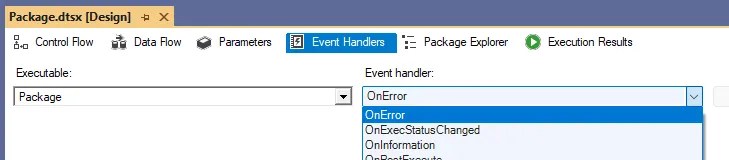
Starting with the OnError event, we’ll add an Execute SQL Task to call our procedure. Almost all the parameters are System parameters but we’ll need to manually set the EventType. Here’s the SQL Statement for the task:
EXEC dbo.LogSSISFailure ?, ?, ?, 'OnError', ?, ?, ?, ?;
The parameters for the task will be mapped like this:
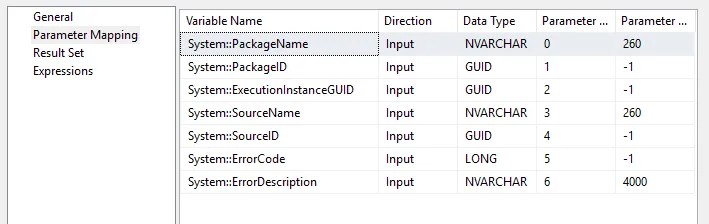
I’ve also set up the same for the OnTaskFailed event. Some issues can raise an error event or a failure event – or both – depending how they’re set up. The OnError handler records details of the exception, whereas OnTaskFailed captures a failed state. They’re related but not identical, so between them you’ll get great coverage for any type of failure.
With those in place, if I create a task to read from a dummy table, here’s the outputs which are captured for the failure:

That’s all there is to it. Regardless of package size, this will handle failures and errors without the need to create failure constraints and bespoke tasks in the main flow. This is a basic example but you could expand on this to add conditional logic or email alerting, for example.
One last bonus for tasks in these handlers – we don’t want their failures to bring down the rest of the package. To avoid this, ensure the FailPackageOnFailure property is set to False, and if you really want to be sure, set ForceExecutionResult as Success – although this will hide the error altogether. This ensures that if there’s an issue with the tracking (such as the logging database being unavailable), it won’t throw up other issues in the package.
Wrap up
SSIS isn’t a modern solution, but we can elevate its effectiveness with careful planning. In this post we’ve looked at a framework using Event Handlers to collate failures and error events to ease the pain of troubleshooting.
Coming back to the title, this approach is:
- simple to get started and set up in a package
- consistent tracking for multiple packages in a central location
- effective logging of the component and reason for failure
With bespoke flows and precedence constraints littered across packages they become unwieldy. Also, there’s no guarantee the next developer will maintain and extend them consistently. This approach gives us a template which needs no modification between packages if you’re sharing connections via project configuration.
Using this as a framework for tracking can help bring consistency to an unorganised estate of servers and packages. It’s just as well suited to greenfield implementations as it is retrofitting legacy collections. One table, one proc, two events – every package covered.
 Andy Brownsword
One reply on “Simple, Consistent, and Effective Failure Tracking in SSIS”
[…] Andy Brownsword keeps a log: […]