We previously looked at an introduction to Vertical Partitioning where we covered what it is and the potential benefits and drawbacks of using it. Here I wanted to build up some data and show how we may vertically partition it to help make it more manageable for us.
So that we’ve got some relevant data to use we’ll build a calendar dimension and store different attributes for dates which could be used as part of a reporting solution. The creation script for this can be seen below:
CREATE TABLE dbo.CalendarDimension (
	DateID INT IDENTITY(1, 1) PRIMARY KEY CLUSTERED,
	CalendarDate DATE,
	ReportingPeriod CHAR(7),
	SortableDateString NVARCHAR(10),
	LongDateString NVARCHAR(100),
	LongDateStringFr NVARCHAR(100),
	LongDateStringEs NVARCHAR(100),
	LongDateStringJp NVARCHAR(100),
);

WITH Dates AS (

	SELECT DateValue = CAST('1900-01-01' AS DATE)
	UNION ALL
	SELECT DATEADD(DAY, 1, DateValue)
	FROM Dates
	WHERE DateValue < '2099-12-31'
)
INSERT INTO dbo.CalendarDimension (
	CalendarDate,
	ReportingPeriod,
	SortableDateString,
	LongDateString,
	LongDateStringFr,
	LongDateStringEs,
	LongDateStringJp
)
SELECT
	d.DateValue,
	FORMAT(d.DateValue, 'yyyyPMM'),
	FORMAT(d.DateValue, 'yyyy-MM-dd'),
	FORMAT(d.DateValue, 'dddd dd MMMM yyyy'),
	FORMAT(d.DateValue, 'dddd dd MMMM yyyy', 'fr'),
	FORMAT(d.DateValue, 'dddd dd MMMM yyyy', 'es'),
	FORMAT(d.DateValue, 'dddd dd MMMM yyyy', 'ja')
FROM
	Dates d
OPTION
	(MAXRECURSION 0);
What should be partitioned
When considering how to partition the data we want to look at what may be beneficial for us to split out. There are a few common types of data we mentioned previously which are good candidates for moving into a separate table:
- data which is similar and relates together naturally
- data which is less frequently accessed or used
- fields which take up larger volumes of storage
We might choose one or multiple of these types of data and it may be moved into one or even multiple tables. In this instance we’ll only create a single other table as an example.
When looking at our data structure we could argue that our large string data which is stored in multiple languages likely covers all three of those use cases. We’ll therefore use these as our candidates for vertical partitioning.
Separating the data
Before we get to separating the data it’s worth noting that we’ll be changing the underlying table and data stored in it through this process so it shouldn’t be undertaken whilst the data is changing or being accessed.
Now that we’ve decided which fields we’d like to separate we’ll create a table to store that data. This will only contain our primary key and the fields which we’ll be moving out. When that is created we can then insert all of the data from our main table:
CREATE TABLE dbo.CalendarDimensionStrings (
	DateID INT PRIMARY KEY CLUSTERED,
	LongDateString NVARCHAR(100),
	LongDateStringFr NVARCHAR(100),
	LongDateStringEs NVARCHAR(100),
	LongDateStringJp NVARCHAR(100),
);

INSERT INTO dbo.CalendarDimensionStrings (
	DateID,
	LongDateString,
	LongDateStringFr,
	LongDateStringEs,
	LongDateStringJp
)
SELECT
	DateID,
	LongDateString,
	LongDateStringFr,
	LongDateStringEs,
	LongDateStringJp
FROM
	dbo.CalendarDimension;
In this script you’ll see that when creating our table we’re not creating our Primary Key as an Identity field as we did with the original table. It’s critical that our tables share the same common unique keys so that they can be linked together once divided up so we don’t want the ID field to be regenerated.
If we check the sizes of the tables we now have in the database, our original CalendarDimension table is around 14mb and our new table containing the strings is about 12mb so that’s a lot of data we’re taking out of the table!
With the data out of the original table we can now look to remove those columns too. Let’s get those dropped from that table:
ALTER TABLE dbo.CalendarDimension DROP COLUMN LongDateString;
ALTER TABLE dbo.CalendarDimension DROP COLUMN LongDateStringFr;
ALTER TABLE dbo.CalendarDimension DROP COLUMN LongDateStringEs;
ALTER TABLE dbo.CalendarDimension DROP COLUMN LongDateStringJp;
Simply dropping the columns won’t free up the storage used by them on the data pages. If we’re ok with that for the time being it could be cleared up at another time but for these purposes I’m going to rebuild the table so we can see the storage difference before and after.
ALTER TABLE dbo.CalendarDimension REBUILD;
With the table rebuilt we can now see that the new version of the CalendarDimension table is around 3mb. Together with the text data we separated we have a total around 15mb where our original table started at 14mb. The reason for the increase in storage is that we’ve duplicated our DateID field into both tables which we need to link them. If you have tables with large composite keys or you’re separating into a number of tables this will add increased storage overhead.
Switcheroo
So far we’ve got the data separated into two tables so technically it’s been partitioned, however folks might not like the fact that when they query the CustomerDimension table they’re missing some fields. This could cause applications, reporting or any automation to fail so there’s a little trick we can do to help with that.
We’ll replace the original table name with a view which joins both sets of data together so it will appear the same as the original table and can be queried in the same way but we’ll have our data separated behind the scenes.
To start with we’ll rename the original table so we can create the view with that name. In this case I’ve referred to the remaining columns as core data:
sp_rename 'dbo.CalendarDimension', 'CalendarDimensionCore';
Once that’s been renamed we’ll create the view below which joins the table on our common key and retrieves the relevant fields from each table:
CREATE VIEW dbo.CalendarDimension
AS
	SELECT
		c.DateID,
		c.CalendarDate,
		c.ReportingPeriod,
		c.SortableDateString,
		s.LongDateString,
		s.LongDateStringFr,
		s.LongDateStringEs,
		s.LongDateStringJp
	FROM
		dbo.CalendarDimensionCore c
		INNER JOIN dbo.CalendarDimensionStrings s
			ON c.DateID = s.DateID
GO
If we look at the resulting view in Management Studio we can now see it appears to be identical to the table we started with, which it likely will be for any applications or procedures which need to interrogate it:
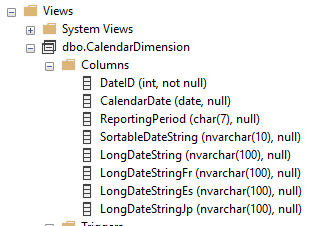
With the view in place to handle reads against the data we would still need to review and alter procedures which could write data into the previous table. These would need to be modified accordingly to update whichever of our new tables are required.
Wrap up
Here we’ve looked at practically vertically partitioning a table. We started by considering which fields within our data were right for separating and then proceeded to create a new table and migrate that data across. After that we switched our old table out and put a view into its place to make the change as transparent as possible for consuming applications.
In our introduction we looked at benefits which could be bought by separating our data in this way. We haven’t specifically covered that this time out so we’ll come back to that soon to show what these benefits would look like and how we could improve them further with some additional changes.
 Andy Brownsword
2 replies on “Implementing Vertical Partitioning”
[…] previously looked at how to implement vertical partitioning and the benefits it can bring within our data. Here I’d like to dive a little further into […]
[…] out across multiple others via vertical partitioning. More details about vertical partitioning, how to implement it, the benefits, and performance improvements can be found in previous posts for […]