
Last week we looked at project parameters in SSIS to help us configure our projects. This can help us to tailor the project to the package its in for example. Here we’ll look at using Configurations within Visual Studio to manage those parameters for multiple environments.
Configuring parameters
We’ll start out with the project used last time and I’ll add another parameter to the project related to the environment we’re targeting which we can demonstrate with:

The magic button which we’re after is on the Project Parameters UI and next to the add / remove option. This will allow us to choose which parameters we want to add to the Configurations:
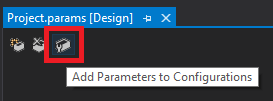
On the popup we won’t have much to see but an Add option to select which parameters we want to configure. We’ll choose both of them and proceed. Now we’ve got a bit more to go at:

The parameters will be listed as separate rows, and each configuration (in this case, environments) will be separate columns. We can set the value at the intersection, so for example we’ll change the Environment to read ‘Dev’.
When saving those changes we’ll be informed that the parameters are stored within the project file. They’re stored in XML inside the .dtproj file:

With the change to our Environment parameter we’ll see the difference when returning to the Project Parameters pane:

That’s some parameters sorted, but we’ve only got the settings for one environment – the default Development one. Let’s look at adding some more.
Configurations
To manage the Configurations we’ll use the Configuration Manager (via Build menu). By default we’ll have a single configuration for our solution, ‘Development’ as we saw:

You may notice on this dialog that we have two configurations present: solution and project. These are set up independently but a project configuration will be tied to a solution configuration.
Selecting the project level Configuration we can choose to add a new one. We’ll create a new Production configuration:

Note that I’ve selected the option to ‘Create new solution configurations’ as this will automatically create the solution level equivalent and tie them together. We’re also optionally copying the existing settings from our Development values.
With that in place the Configuration Manager will automatically set us to the Production configuration at solution level with the project configuration tied to it:

We’ve copied our Development values so back on the Project Parameters we’ll update the values:

Now we have all of the pieces together we can use the Solution Configuration dropdown on the toolbar to switch between configurations. The solution configuration is tied to our project configuration so we’ll see the values change as the selection does.
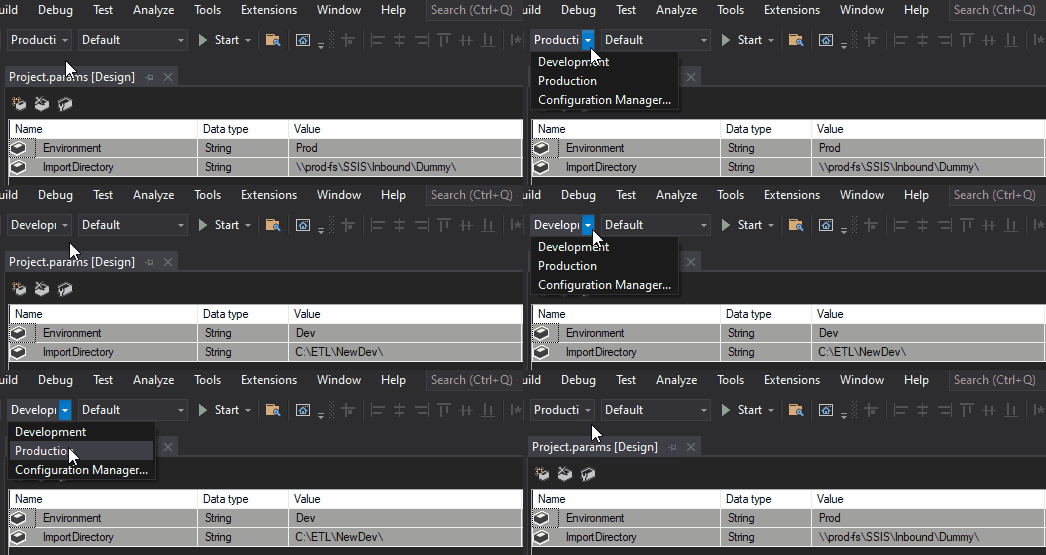
If we want to review or change the configuration across multiple environments at the same time we can head back to the parameter configuration dialog which will now contain our Production configuration:

Deployment
A brief but important bit about deployment when using configurations.
The configurations themselves aren’t deployed with the project. You aren’t able to choose which set of parameters to use from the SSIS catalog after deployment.
The values for the active configuration are deployed as the defaults. When using this approach its key to ensure that the correct configuration is deployed to the correct environment.
If we wanted to manage the configurations for environments within the SSIS catalog we’d need to look at Environment configuration – which we will look at next week.
Other points of note
I wanted to add a few notes which I thought was helpful to point out with this approach.
We haven’t talked about connections here. This approach doesn’t support configuring those connections even if they’re managed at a project level. If you want to configure those in this way then you’d need to add Project Parameters to use as expressions for the connections, for example the server, database, or connection string.
The configuration we’ve looked at here looks at parameters but the project configuration also extends to the Target Server Version. In the case you’re managing an estate with multiple versions of SSIS deployed you could create individual targets for those too.
Finally, while SSIS packages themselves don’t lend themselves too well to source control, these configurations do. With them being stored in an XML configuration file they diff very nicely if values need to be updated and reviewed.
Wrap up
In this post we’ve looked at how to use Project Configurations within Visual Studio to help effectively manage multiple sets of parameter values within a SSIS project.
We’ve seen how to make the parameters aware of the configurations, and how to extend the configurations for additional environments in our example.
The key benefits to this approach are that we can maintain parameters in the same development environment as the packages, the configuration is stored alongside the project, and the storage of these is well suited to source control and auditing changes.
It does have the drawback of not supporting connection configuration but it can be worked through by migrating their configuration to use parameters.
We also foreshadowed looking at the Environment approach to configuration within the SSIS catalog next time.
There’s a wide variety of ways to configure SSIS packages and projects, I haven’t seen a consensus on what the preferred or best practice approach is so sound off if you like or dislike this one for any particular reason.
 Andy Brownsword
3 replies on “Managing SSIS Parameters in Visual Studio”
[…] Andy Brownsword continues diving into SSIS projects: […]
[…] week we looked at how to manage SSIS parameters using Visual Studio’s Configurations which would maintain these values in the development environment. Here the configuration being […]
[…] with configuration after looking at package configuration, project configuration, Visual Studio configurations, and SSIS environments. But here we are. Maybe its time for a change. See you next […]