
Productivity is a core component of our day to day jobs in and around code. Part of that comes from the tools we use and a common one would be Notepad++ thanks to all of its handy features and plugins to extend it.
One of the simplest out of the box features is the ability to highlight any matching words when we select one. This can help us find references of the same table, function, object, etc. within our code. This is what it looks like with some sample text:
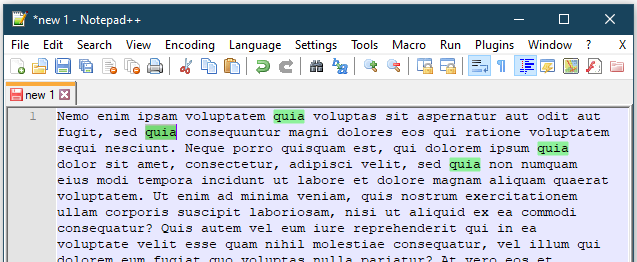
An issue with this feature is that it doesn’t provide us with partial matches, for example if we had a Chair object we could find all instances of that but RedChair and BlueChair would not be highlighted.
Well that can change with one simple setting if we dive into the configuration. If we pop open the Preferences (Settings > Preferences) and then select the Highlighting tab we can uncheck the option ‘Match whole word only’.
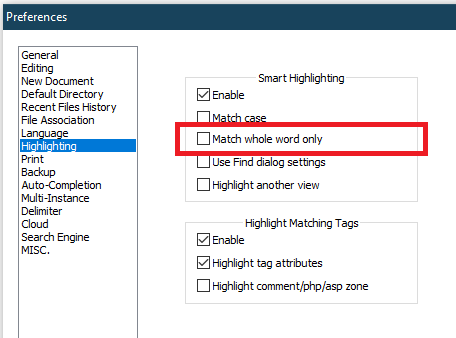
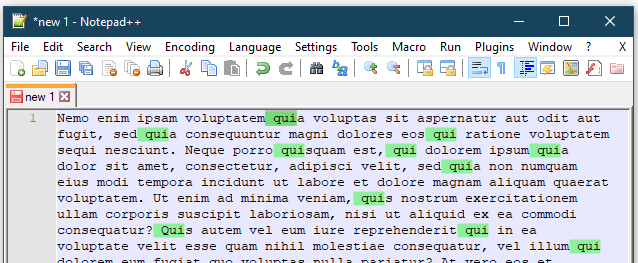
With this changed the highlighting will now be for whichever characters we have highlighted. We can now find all words which contain a partial match such as ‘qui’:

What’s more, with this setting it isn’t only parts of words which can be selected, you can also use spaces, tabs, or pretty much any character to highlight. This means that if you wanted to find words which start with a particular sequence you can precede with a space such as:
That’s all there is to it. A handy tip for those folks out there who like Notepad++ as much as I do but weren’t aware we could eek out a little more convenience with this one setting.

