
When developing Power BI models, we don’t always want to refresh the entire dataset before we start working with the data. We can speed up the refresh – and therefore our development – by reducing the volume we’re working with.
Here we’ll look at a couple of ways to use parameters to adapt production-ready models to reduce and tailor data volumes for development.
Reducing with parameters
Let’s start by reducing the results with a regular parameter. For this example, we’ll use the WorldWideImportersDW dataset and limit sales to a single City.
Add a parameter (via the Query pane, or Home > Manage Parameters) and assign a value to filter by:

We can then use the parameter to filter records across other tables. We’ll take the transactions in Fact.Sale and apply a filter to the rows, choosing the Parameter option:

Once applied, you’ll see the preview results are filtered by the parameter. Changing the parameter is all it takes to shift to a different city.
It’s recommended to keep this transformation early in the sequence to take advantage of Query Folding if the source supports it. In this example I can see the filter is included when the database is queried:
    ...
    from [Fact].[Sale] as [_]
    where [_].[City Key] = 49531
) as [$Ordered]
...
That’s great for filtering, but this doesn’t work for production. You need an option to not filter the results when you want to see a full refresh. A null value doesn’t always play nice, so we’ll use a default -1 in this case as city keys don’t use negative numbers.
The simplest way to do this is via the Advanced Editor and changing the M query.
By default we’ll see something like:
    ...
    #"Navigation" = Source{[Schema = "Fact", Item = "Sale"]}[Data],
    #"Filtered Rows" = Table.SelectRows(#"Navigation",
        each [City Key] = CityFilter)
    ...
For this we’ll add an extra condition to the Filtered Rows transformation:
    ...
    #"Navigation" = Source{[Schema = "Fact", Item = "Sale"]}[Data],
    #"Filtered Rows" = Table.SelectRows(#"Navigation",
        each [City Key] = CityFilter
            or CityFilter = -1)
    ...
With that applied we can now filter to a single city, or using -1 we’ll see the full result set.
Using multi-value parameters
Restricting to a single value may be ideal for some scenarios, but if you need to validate comparisons we’ll want multiple options available. We can still use the parameter, but with a different approach.
We want a list of Cities but they aren’t supported as parameters, so we’ll need to create our own. Start by changing the parameter to Text and then set the value as a comma separated list:
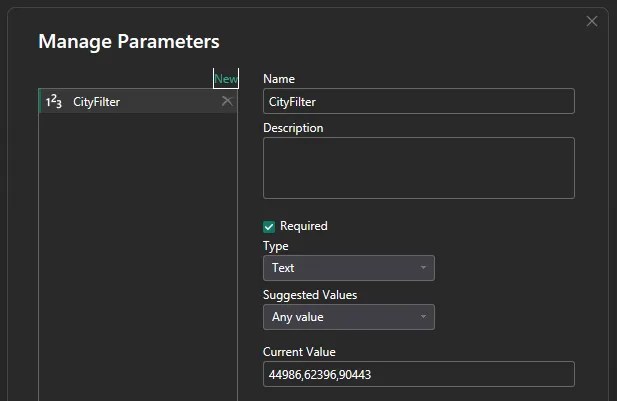
Next create a blank query and use the following M code to parse the parameter text into a numeric list:
let
    Source = List.Transform(
        Text.Split(CityFilter, ","),
        each Number.FromText(Text.Trim(_)))
in
    Source
Now we’ll have a list which our queries can use to filter. In this case I’ve named the query CityFilterList which we’ll refer back to.
We’ll change the previous filter code:
    ...
    #"Filtered Rows" = Table.SelectRows(#"Navigation",
        each [City Key] = CityFilter
            or CityFilter = -1)
    ...
To instead filter based on the list:
    ...
    #"Filtered Rows" = Table.SelectRows(#"Navigation",
        each List.Contains(CityFilterList, [City Key])
            or List.Contains(CityFilterList, -1))
    ...
Instead of being an equality which we had previously, we’re now using List.Contains to see if the City matches any of those in the list. We’ve still got the -1 check to allow a full refresh or production deployment.
Provided your data source supports it, this approach can also fold the filter back to the source query.
Production deployments
During development you’ll set the parameter to one or more specific values to keep refreshes fast. You don’t want to miss +90% of your data in production though, so a quick note about that.
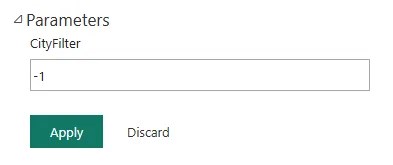
If you’re publishing manually, simply reset the parameter back to -1 to use the full dataset. If you’re working with multiple workspaces or environments, or want to skip the manual step entirely, the parameter can also be managed from the model settings in the Power BI / Fabric service:
Finally, if you’re already using automated deployment pipelines, you can use parameter rules to set appropriate values.
Wrap up
In this post we’ve looked at using Parameters in Power BI to reduce data volumes and speed up development when you don’t need a full refresh. We’ve covered approaches for both single-value and multi-value, and you should be able to drop either into your existing models in just a few minutes.
Remember that once you start filtering one set of data you might need to apply the filter to other queries in the model to maintain consistency, and when you’re ready for production make sure to remove the filtering with one of the options mentioned above.
Waiting for large datasets to refresh is one of the friction points I hate during development. If you only need to validate one element, there’s no reason to process millions of unnecessary rows. A simple parameter can remove that bottleneck in just a few minutes.


2 replies on “Develop Faster in Power BI by Filtering Your Data”
[…] Andy Brownsword’s appeal is becoming more selective: […]
Good clean tips. Especially the List version. Thanks!